
Your Welcome page on the Privyr web allows you to easily get started with your Privyr account. Complete them in order to connect your lead sources and start instantly receiving leads in your Privyr account, engage with your leads, organize follow-ups, send automated WhatsApp messages to your leads, and manage your team.
Privyr Web: Welcome page
Complete the suggested items from top to bottom. You can return at any time—the completion badge updates as you finish tasks. Under Get Started with Privyr, each row is a set of tasks or items. Select a row to expand it, then move through its task cards horizontally. Your progress badge shows what is complete and what remains.
New Lead Automations
Instantly receive, contact, and follow up with new leads from every source.
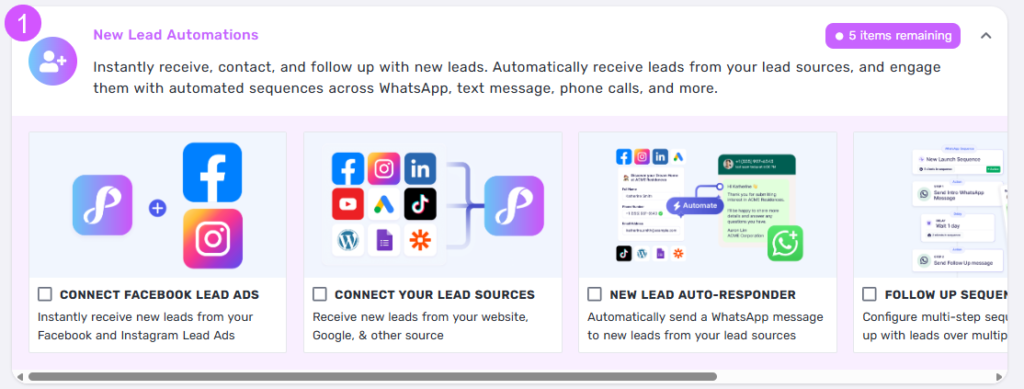
- Start with the Connect Facebook Lead Ads card to receive new leads from your Facebook and Instagram Lead Ads.
- Use Connect Your Lead Sources to pull in leads from your website, Google, TikTok, and other supported sources.
- Turn on the New Lead Auto-Responder to automatically send a WhatsApp message to every new inquiry.
- Finish with Follow Up Sequences to set up multi-step sequences that nurture leads over time.
Quick tip: Start with the lead source where you’re mostly generating leads from, then connect the other lead sources one at a time.
Bulk Lead Engagement
Re-engage existing leads at scale with calls, messages, and campaigns.
- Send a WhatsApp Campaign to instantly message thousands of leads via WhatsApp in one click.
- Configure Follow Up Sequences to follow up with leads over multiple weeks.
- Share Media-Rich Content to create, share, and track personalized sales content in seconds.
- Set up Bulk Call or Message to contact hundreds of leads with tap actions from your phone.
- Track Views & Interest is a Privyr feature that lets you monitor how leads engage with your content. It provides real-time alerts when a lead opens your content and shows details like view counts, time spent viewing, and repeat visits, helping you identify highly interested prospects and follow up at the right time.
Quick tip: Keep each message short and include one clear next step for the lead.
Easy Lead Management
Track every lead and sales activity right from your phone.
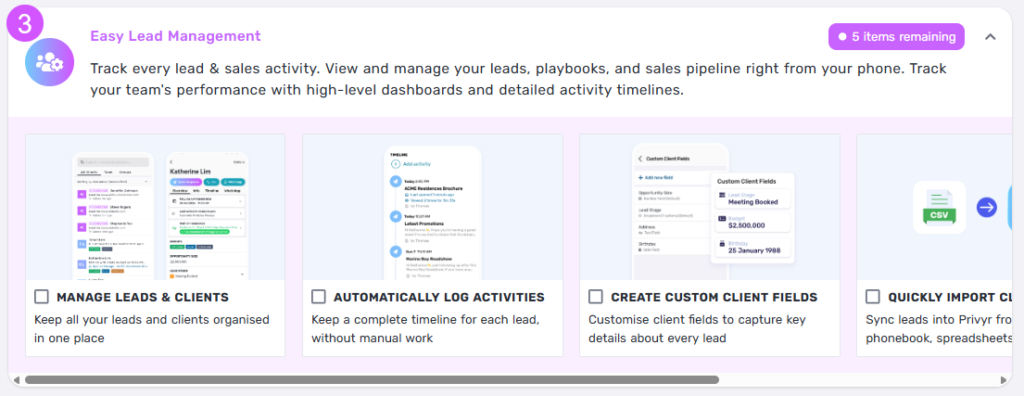
- Open Manage Leads & Clients to keep all your leads and clients organised in one place.
- Turn on Automatically Log Activities so every lead keeps a complete timeline without manual work.
- Use Create Custom Client Fields to capture key details about every lead.
- Finish with Quickly Import Clients to sync leads into Privyr from your phonebook or spreadsheets.
- Export Clients And Data lets you download your client information and activity history in CSV format, making it easy to analyze, back up, share, or transfer your data whenever needed.
Quick tip: A consistent status and next activity makes your pipeline much easier to review.
Official WhatsApp Automations
Use your existing WhatsApp Business number to automate conversations at scale.
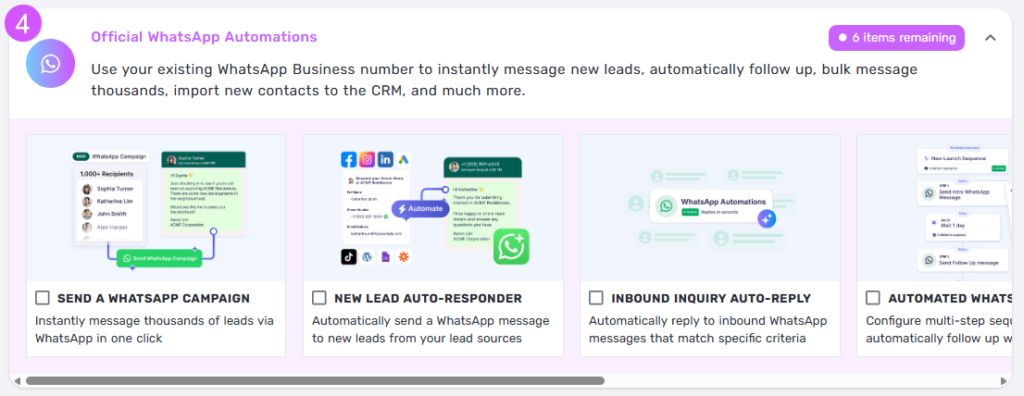
- Set up Send a WhatsApp Campaign to message thousands of leads via WhatsApp in one click.
- Enable the New Lead Auto-Responder to automatically message new leads from your lead sources.
- Configure Inbound Inquiry Auto-Reply to respond automatically to inbound messages that match specific criteria.
- Finish with Automated WhatsApp Sequences to follow up with leads automatically over multiple steps.
- WhatsApp Contact Import allows you to automatically import new contacts from your WhatsApp Business conversations into Privyr. Whenever a new inbound or outbound chat starts, Privyr can create a lead profile and add it to your client list, helping you capture and manage every opportunity without manual data entry.
- WhatsApp Chat Monitoring gives you visibility into your team’s WhatsApp Business conversations directly within Privyr. Monitor chats in real time, review conversation history, provide coaching, improve team coordination, and maintain quality and compliance across client communications.
Quick tip: The items remaining badge shows exactly how many setup tasks still need attention.
Use Privyr as a Team
Gain full control and visibility over your sales team.
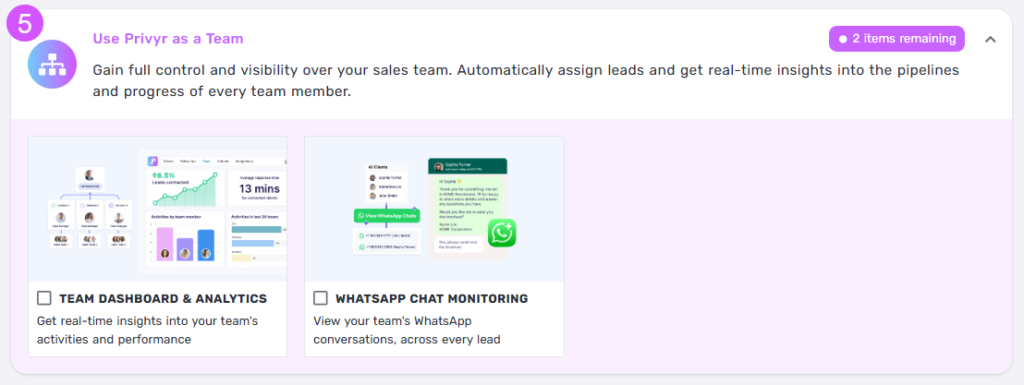
- Open Team Dashboard & Analytics for real-time insights into your team’s activities and performance.
- Enable WhatsApp Chat Monitoring to view your team’s WhatsApp conversations across every lead.
Quick tip: Complete this task after your lead sources and pipeline stages are ready.
Privyr Mobile App: Home tab
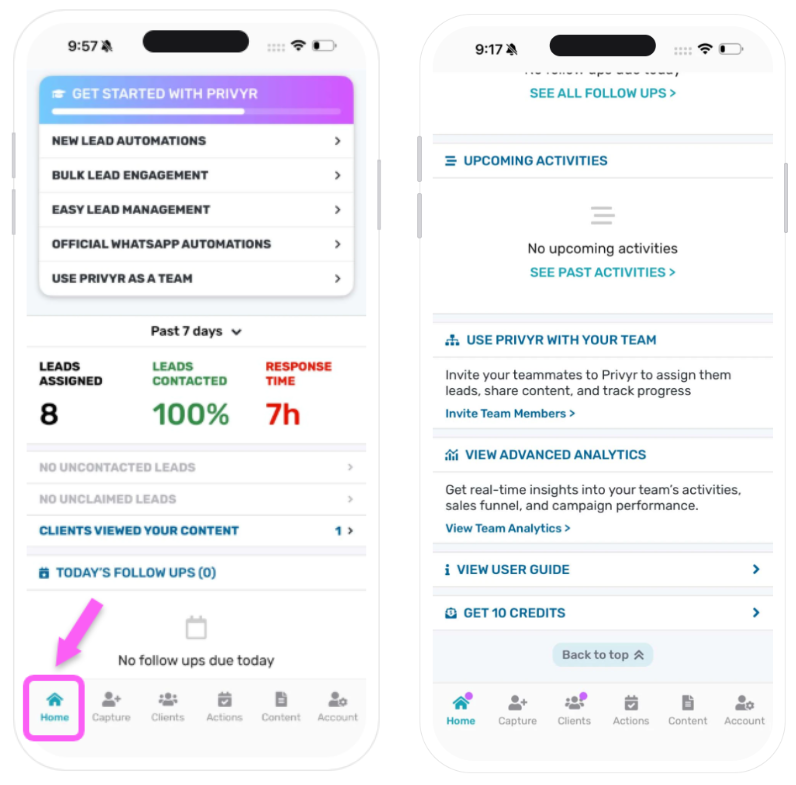
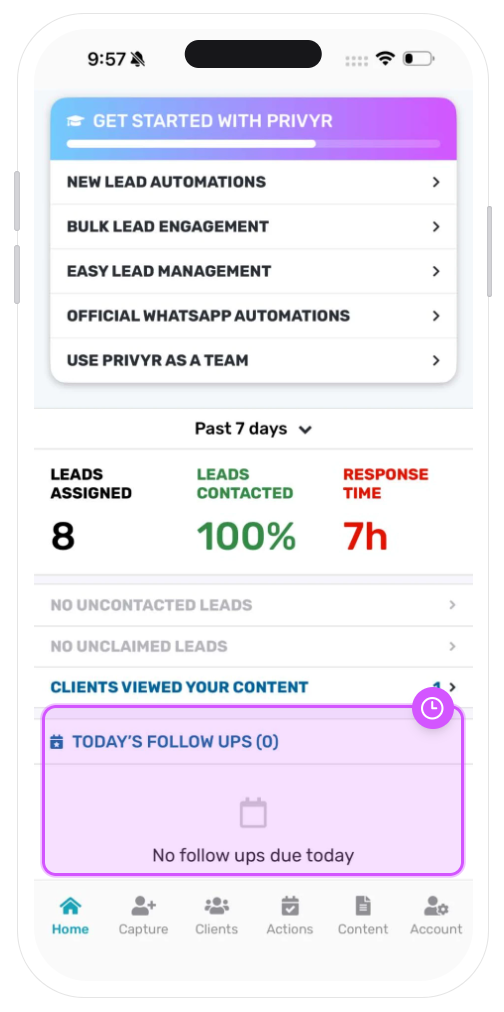
Tap Home in the bottom menu of the Privyr app to see your day at a glance: lead performance, fresh content views, follow-ups due, and team insights—all on one screen.
The Get Started banner
At the very top of the Home page is the Get Started banner where Privyr groups everything a new user should set up into four sets of tasks: New Lead Automations, Bulk Lead Engagement, Easy Lead Management, Official WhatsApp Automations, and Use Privyr as a Team.
Each mission expands into a short checklist of tasks—connecting a lead source, sending a first campaign, claiming your first lead, and so on. When a mission’s tasks are all done you will see all items completed, and the banner disappears from Home once every set of tasks is finished.
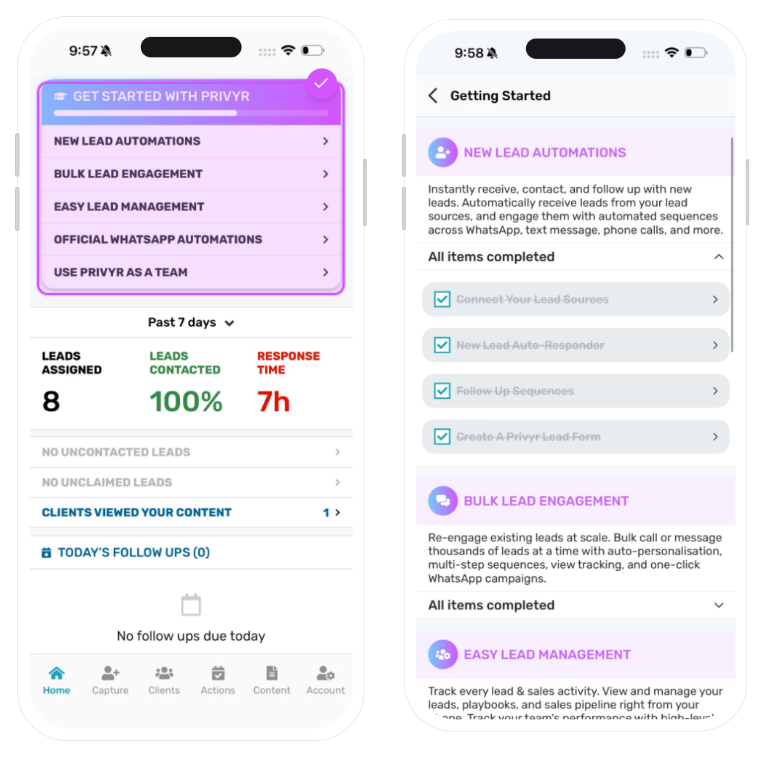
The Getting Started screen: each section expands into its own task checklist.
- Tap the Get Started banner at the top of Home to open the Getting Started screen.
- Tap a section to expand its checklist and see exactly which tasks are still open.
- Work through the tasks under each of the sections in order:
- Tap the back arrow to return to Home; the banner fades away as the sections are completed.
Quick tip: Treat the sets of tasks as your setup checklist – finishing New Lead Automations and Official WhatsApp Automations alone already puts most of your lead follow-up on autopilot.
Your performance at the top
Right under the Get Started banner is a date filter that defaults to Past 7 days. Tap it to change the period your numbers cover to 24 hours.
Leads Assigned counts leads that are currently assigned to you, Leads Contacted shows how many you have reached out to as a percentage, and Response Time shows how quickly you followed up when a new lead gets assigned to your account. Green numbers mean you are on track, red means there is room to speed up.
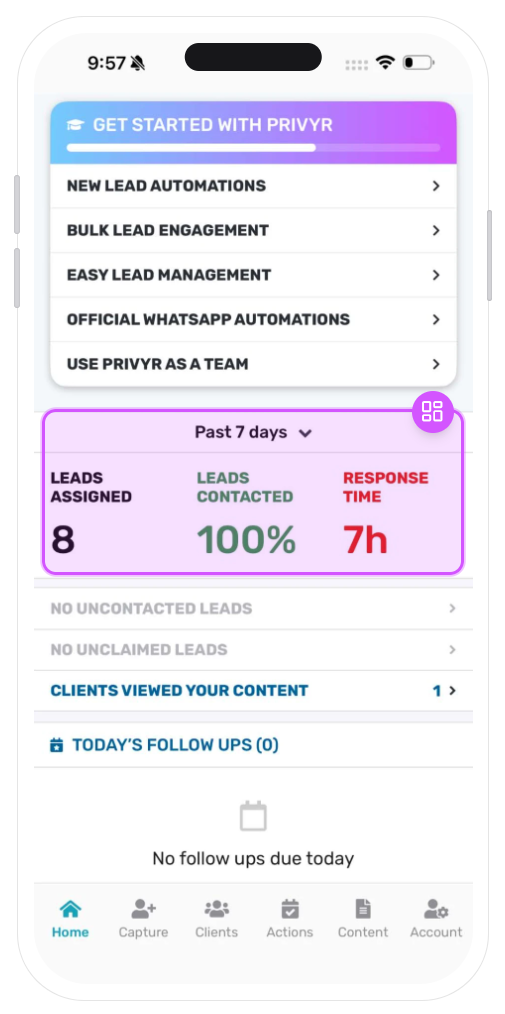
- Tap Past 7 days to switch the reporting period to the Past 24 hours.
- Compare Leads Contacted against Leads Assigned to spot leads you have not reached yet.
- Watch Response Time—contacting or getting in touch with your leads instantly once they’re assigned to your account within the hour dramatically improves conversion.
Quick tip: If Leads Contacted dips below 100%, tap the Uncontacted Leads row further down to jump straight to the leads you missed.
Lead Alerts and Content Views
Below the metrics are alert rows that only appear when there is something to act on. When every lead is contacted and claimed, you will see calm grey rows like No Uncontacted Leads and No Unclaimed Leads.
Clients Viewed Your Content is one of the rows to watch. It shows how many times leads opened your messages, files, or pages, with a coloured dot marking new views since you last checked.
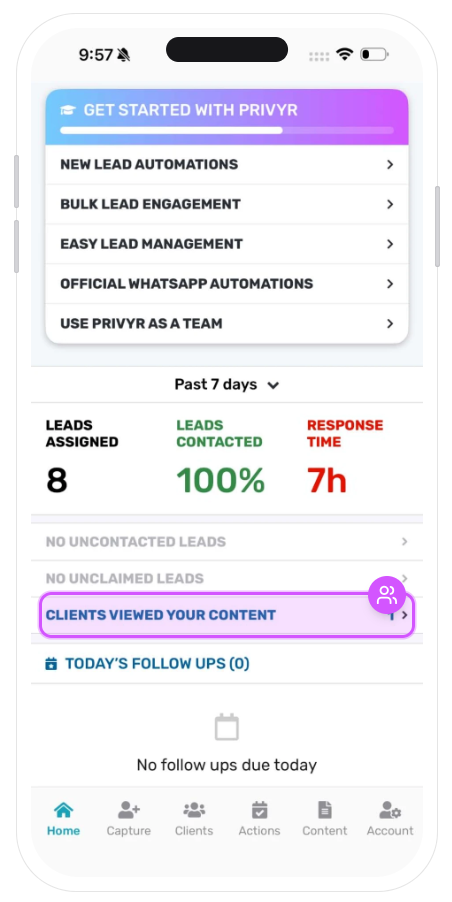
- Tap any alert row to open the matching lead list.
- Tap Clients Viewed Your Content to see exactly who opened what and when.
- Follow up while a view is fresh—the lead is clearly interested right now.
Quick tip: A view without a reply is the perfect excuse to reach out: “Saw you had a look at the brochure—any questions?”
Today’s Follow Ups and Upcoming Activities
Today’s Follow Ups lists every follow-up due today so nothing slips through. When the list is empty, you will see a friendly ‘No follow ups due today’ message.
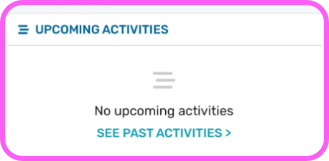
Upcoming Activities works the same way for meetings, calls, and reminders scheduled for later dates.
- Tap See All Follow Ups to view and manage your complete follow-up list.
- Tap See Past Activities to review completed meetings and calls.
- Schedule Follow Up Reminders from when viewing the client details and they will appear here automatically.
Tap Upcoming Activities to open the full Activity Timeline. Every date gets its own section. Tap Load Previous Activities to scroll back through earlier days and switch between the Calendar and Today views at the top.
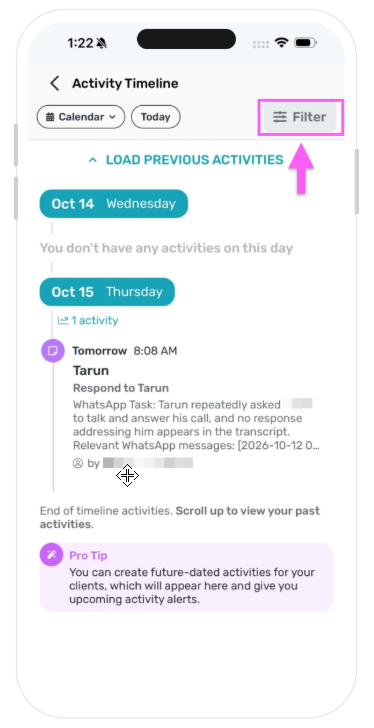
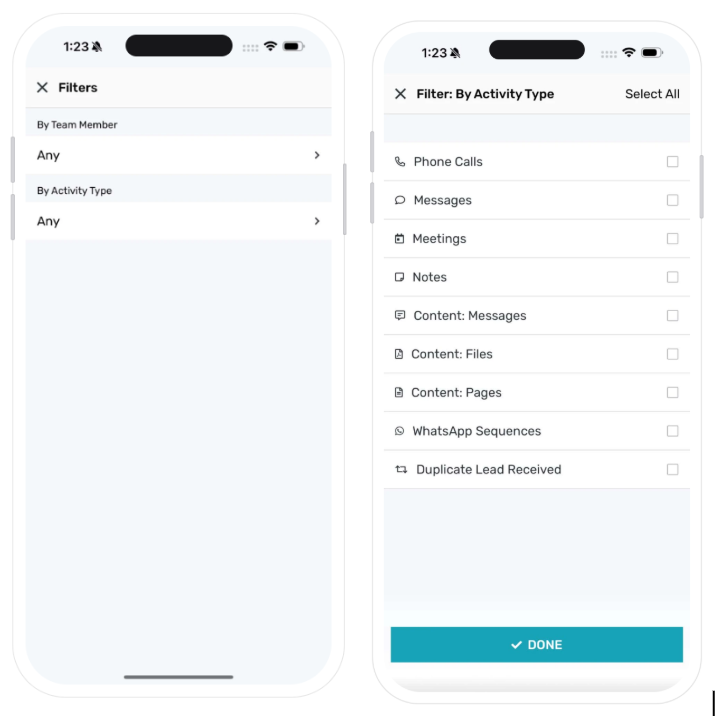
You can also filter the timeline. Tap Filter, then narrow activities By Team Member (pick any teammate from the list) or By Activity Type—Phone Calls, Messages, Meetings, Notes, Content Messages, Files , and Pages, WhatsApp Sequences, and Duplicate Lead Received. Tick what you want to see, then tap Done.
Quick tip: Make checking this section part of your morning routine—clear it before you start capturing or receiving new leads.
Team Tools and Advanced Analytics
Further down the page are two panels for growing beyond solo work. Use Privyr with Your Team lets you invite teammates so you can assign leads, share content, and track progress together.
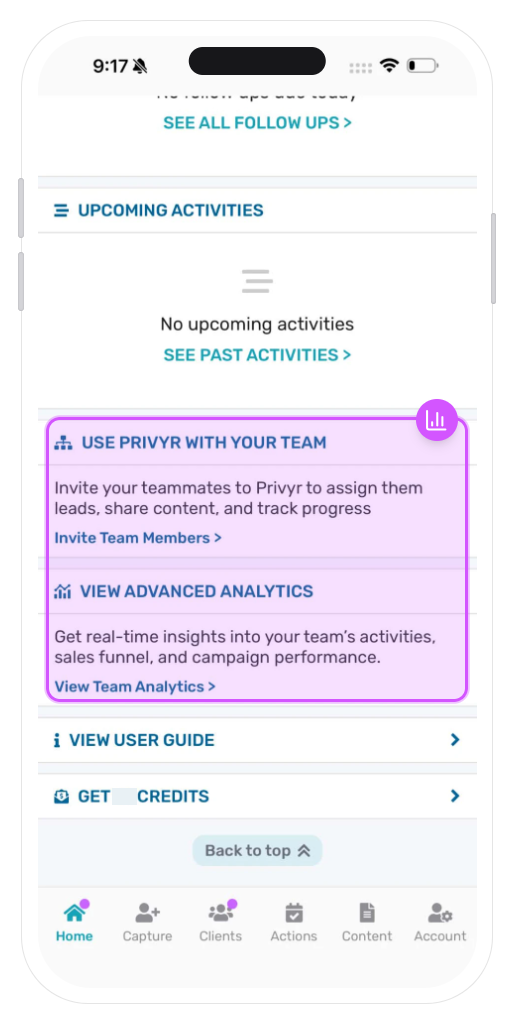
View Advanced Analytics opens deeper reporting on your team’s activities, sales funnel, and campaign performance in real time.
- Tap Invite Team Members to send colleagues an invitation to join your Privyr team.
- Tap View Team Analytics to explore team-level dashboards and trends.
Quick tip: Team features shine once you have a handful of people—assign every incoming lead to an owner automatically.
Help Guide and Referral Credits
At the bottom of Home tab you will find View User Guide, which opens Privyr’s built-in help articles, and Get Credits, which opens Privyr’s Referral Rewards Program – your referrals who created their Privyr account via your invitation link will be automatically credited with the stated referral amount and be tracked in your referral history and your account will be automatically credited once one of your referrals subscribes to Privyr and makes their first subscription payment
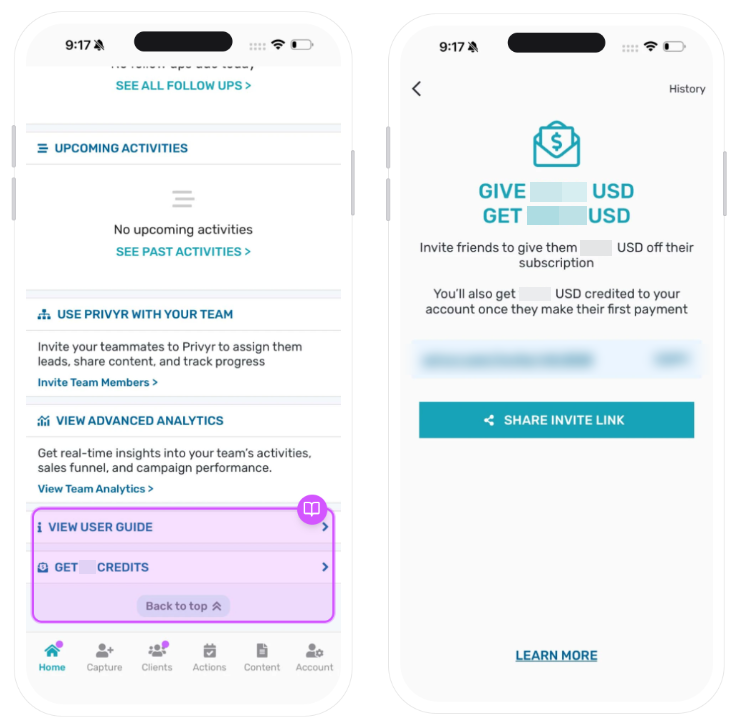
The referral screen puts your personal invite link front and centre. Copy it and paste it anywhere, or tap Share Invite Link to send it straight through WhatsApp, email, or your other apps. The History link at the top right shows the friends you have invited and the rewards you have earned so far.
A Back to top button appears after you scroll, and the bottom menu—Home, Capture, Clients, Actions, Content, Account—is always within reach.
The referral screen opens when you tap Get Credits on Home.
- Tap View User Guide for tips inside the app itself.
- Tap Get Credits at the bottom of Home to open the referral screen.
- Tap Copy to copy your personal invite link, or tap Share Invite Link to send it directly to a friend.
- Once your friend subscribes and makes their first payment, credits are added automatically to your account
- Tip: Tap History at the top right to track invites and rewards.
- Use Back to top to jump straight back to your metrics.
Quick tip: The reward lands only after your friend’s first payment, so share the link with people who are genuinely ready to try Privyr—and remind them the 10.00 USD comes off their subscription too.
What to do first
Start each day on Home: clear Today’s Follow Ups, check who viewed your content, and reply to any Uncontacted Leads. Then explore team analytics when you are ready to grow.