
Introduction
You can set up your WhatsApp Auto-Responder in Privyr to instantly message new leads and/or respond to different enquiries 24/7, even when you’re busy or offline.
There are two types of Auto-Responders you can set up in Privyr, based on what should trigger the response:
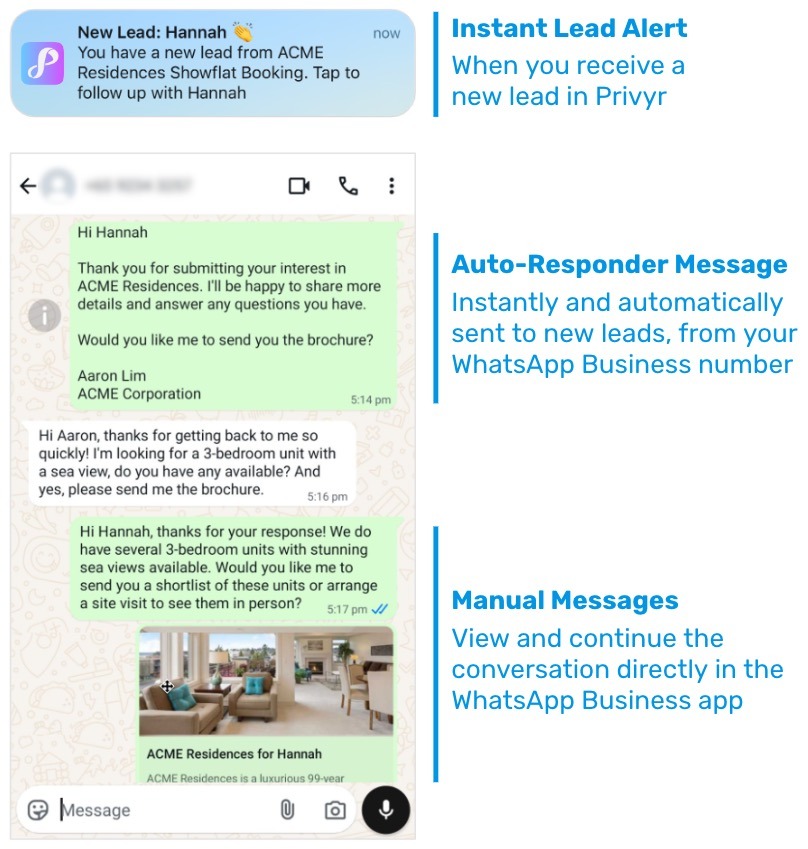
- New Lead Auto-Responder: Automatically message any new lead you receive via your integrations. This ensures you immediately contact new leads from your own WhatsApp Business number, no matter where they were generated.
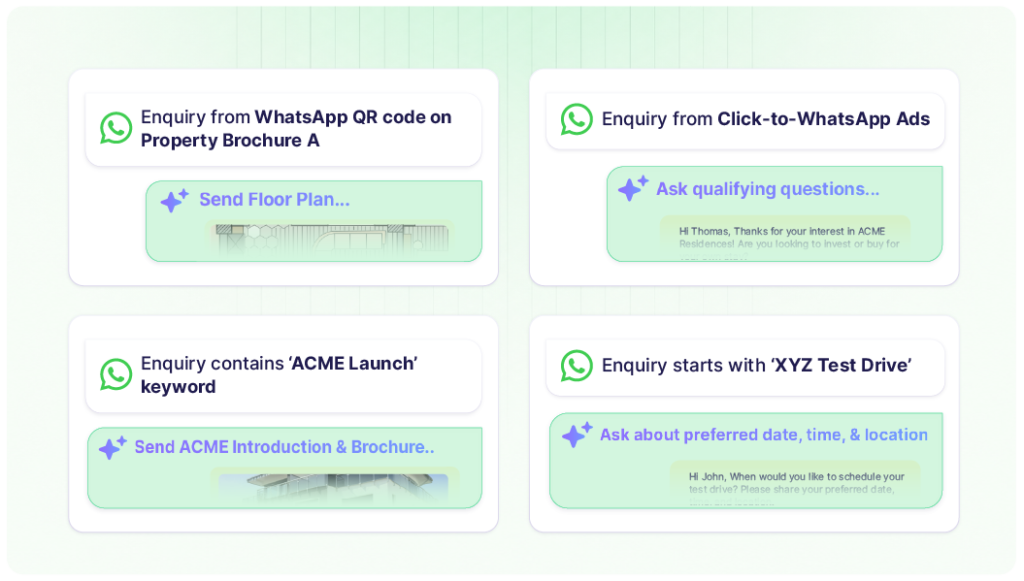
- Inbound Inquiry Auto-Responder: Automatically send the right response to different WhatsApp enquiries you receive. You can use it to provide further information for specific products, ask follow-up questions, qualify the lead, and more. This ensures each enquiry receives a relevant response instantly.
With Privyr’s WhatsApp Auto-Responder, you can use your own WhatsApp Business number to:
- Instantly send different responses depending on the product, property, campaign, or service someone is enquiring about
- Share specific brochures, price lists, floor plans, links, or other specific information
- Automatically ask qualifying questions to move the conversation ahead
- Respond to common enquiries automatically while you are busy or offline
Privyr doesn’t replace WhatsApp’s built-in Greeting Message. It gives businesses a more flexible way to automate responses to different inbound enquiries.
You can view and continue all conversations directly in the WhatsApp Business app on your phone or laptop.
As a verified Meta Business Partner, Privyr’s Auto-Responder works through the Official WhatsApp APIs, keeping your account and data safe while complying with the platform’s Terms of Service. Auto-Responder is a part of our comprehensive WhatsApp Automation toolkit you can access with Privyr.
Setting Up New Lead Auto-Responder
To set up your WhatsApp Auto-Responder, your WhatsApp Business phone number must be connected to Privyr. If you have not set up the connection yet, please follow the guide on Connecting your WhatsApp Business number to Privyr.
Once you’ve connected your WhatsApp Business number, you can set up your WhatsApp Auto-Responder to start following up with your clients automatically:
- On the Privyr web, go to your WhatsApp Auto-Responder setup page: https://web.privyr.com/automation/whatsapp-responder
- On the Privyr mobile app, go to your Account tab > WhatsApp Auto-Responder Rules
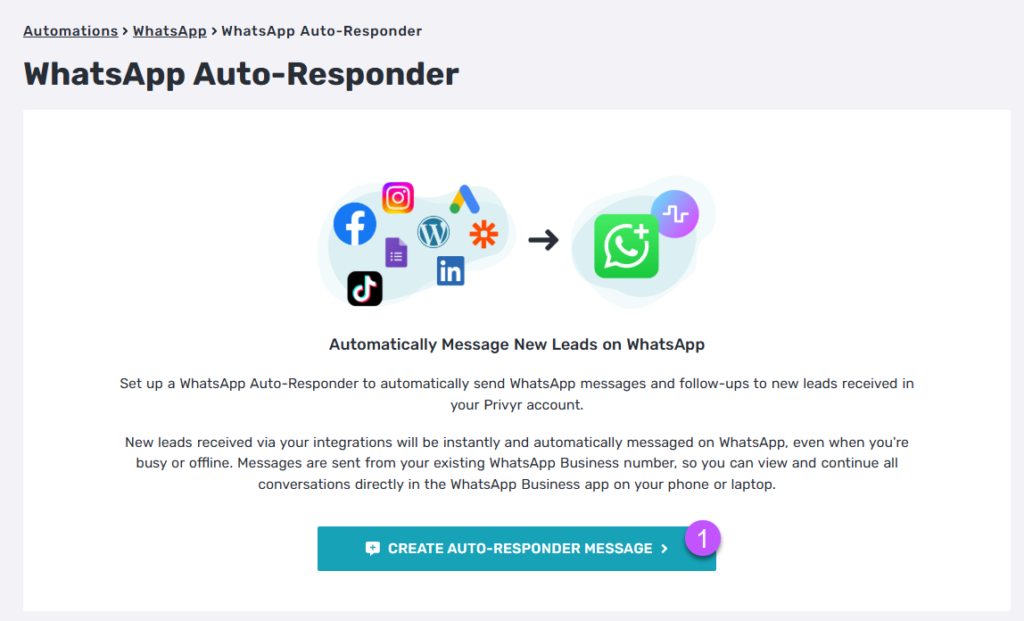
- Next, click on ‘Create Auto-Responder Message’
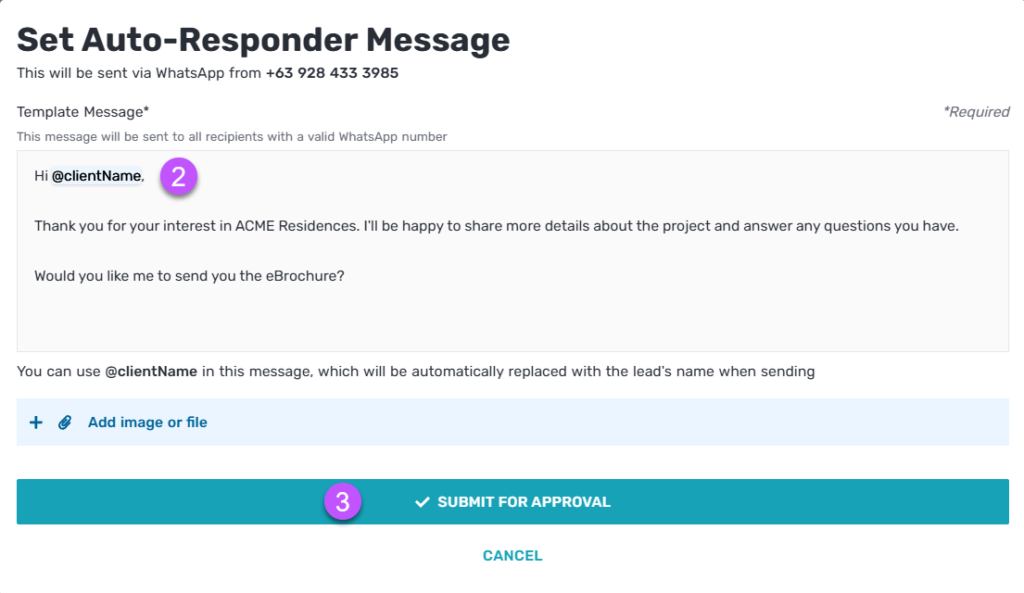
- Enter the message that you’d like to send automatically to your clients via WhatsApp
- Then, click on Submit for Approval
- The message template will be submitted to WhatsApp for approval, which usually takes a few minutes up to 24 hours for your first few templates.
- Lastly, click on Activate Auto-Responder
- Note that Meta will need to review and approve your message template before you can activate your auto-responder message.
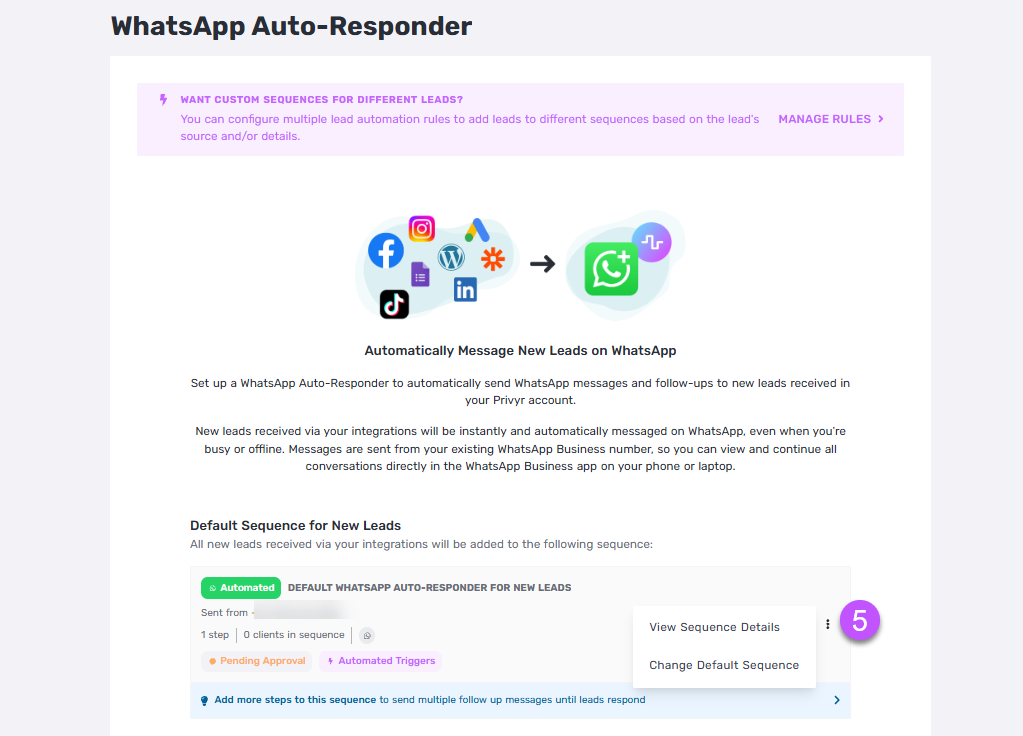
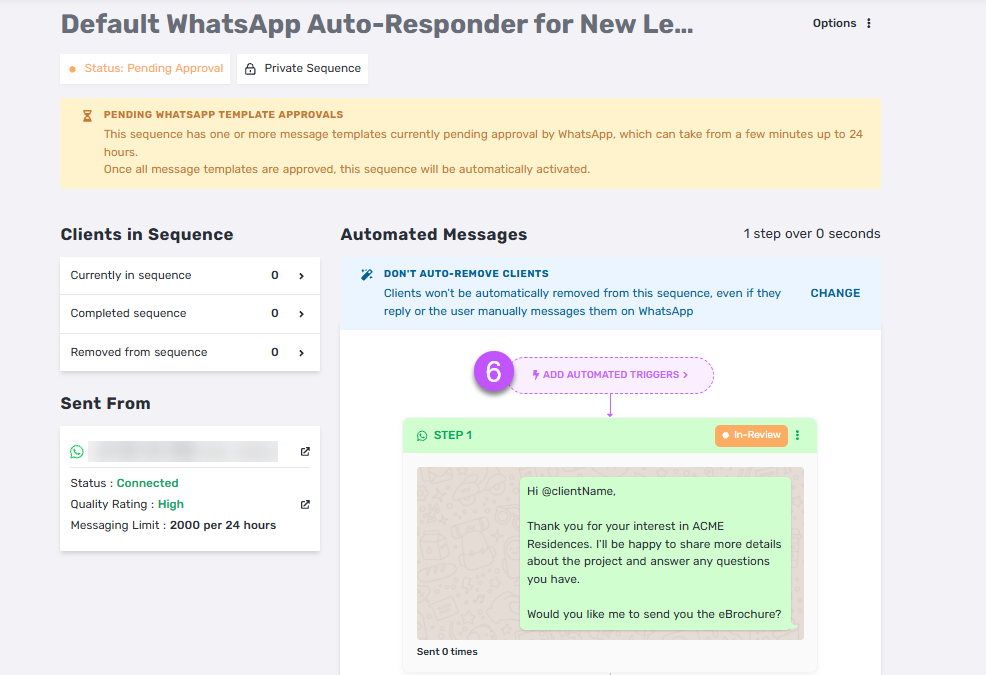
- Once activated, you can view your sequence details by tapping on the three-dotted button (…) next to the Default Sequence for New Leads selected > View Sequence Details
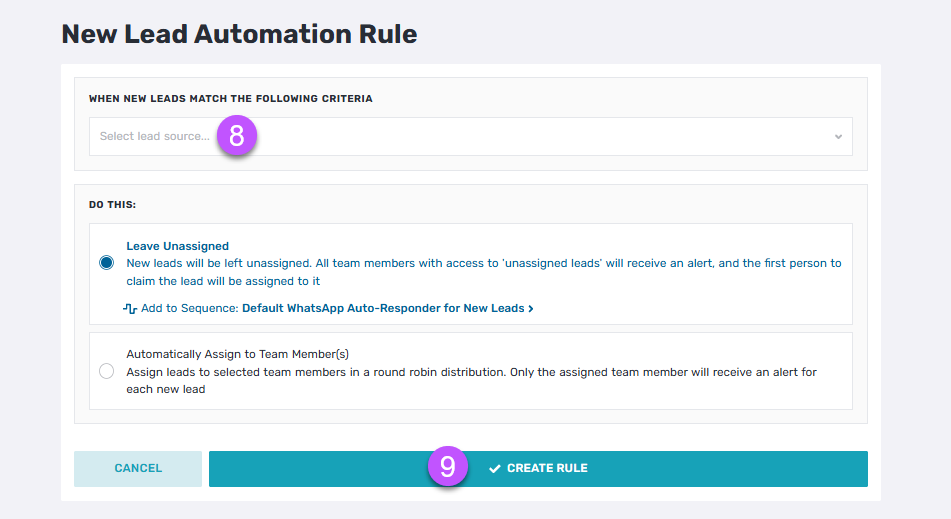
- By default, the sequence will be sent to all new leads from all sources. You can also edit this by tapping on Automated Trigger to create and add a new Lead Automation Rule
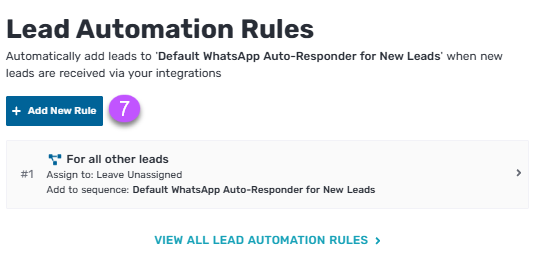
- This lets you create one or more rules to automatically add new leads to specific Automated WhatsApp Sequences based on their source and/or details.
- Lastly, click CREATE RULE to save, and you’ll be redirected to your Lead Automation Rules list
- You can create as many rules as you need and set different triggers that automatically send the right WhatsApp messages to your new leads.
Setting Up Inbound Inquiry Auto-Responder
In addition to New Lead Automation Rules, you can also set up an Inbound Inquiry Auto-Responder, which helps you instantly respond to incoming business enquiries on WhatsApp based on rules you set.
Instead of manually replying to every WhatsApp message you receive, especially the repetitive ones, you can set up rules once and let Privyr handle the initial response and any relevant follow-ups automatically, 24/7.
You choose:
- What enquiry should trigger the rule
- What message Privyr should send in response
This is useful for businesses receiving enquiries from:
- Click-to-WhatsApp Ads
- wa.me links and QR codes
- Online listings and marketplaces
- Other channels that prompt prospects to start a WhatsApp conversation with you
If you find yourself repeatedly answering the same few questions like “Do you have this in stock?“, “What’s the price?“, “Can I get more info?” etc. Inbound Inquiry Auto-Responder is designed to take that repetitive work off your plate.
To set up the Inbound Inquiry Auto-Responder, here are the steps that you can follow:
- On your Privyr web, go to the Automations tab > WhatsApp > Inbound Inquiry Auto-Responder
- In the top right corner, please confirm that you’re creating the rules for the appropriate WhatsApp Business number
- Then, click on CREATE RULE for the trigger type for your automated WhatsApp response:
- Auto-Responder for New Conversations: Automatically respond when someone messages you for the first time, or after a set period without activity.
- Auto-Responder for Meta Click-to-WhatsApp Ads: Automatically respond to enquiries from your Click-to-WhatsApp Ads.
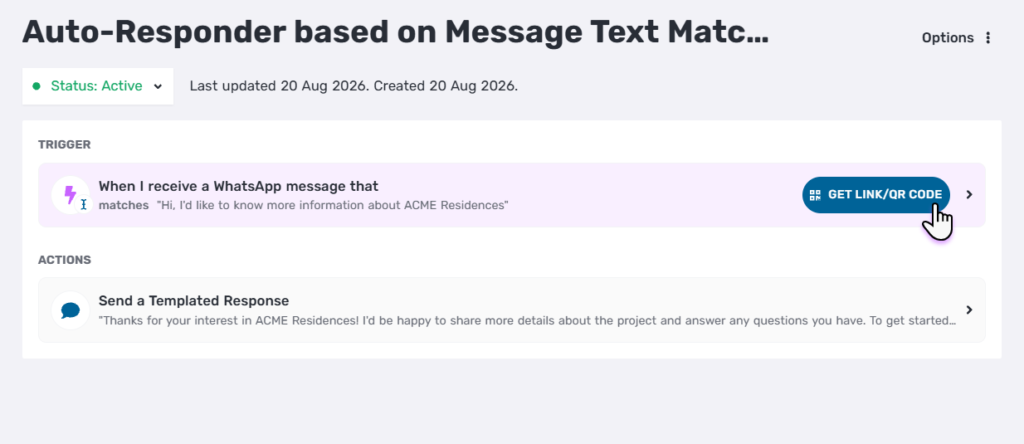
- Auto-Responder based on Message Text Match: Automatically respond when an incoming message matches a specific text, or contains certain keywords.
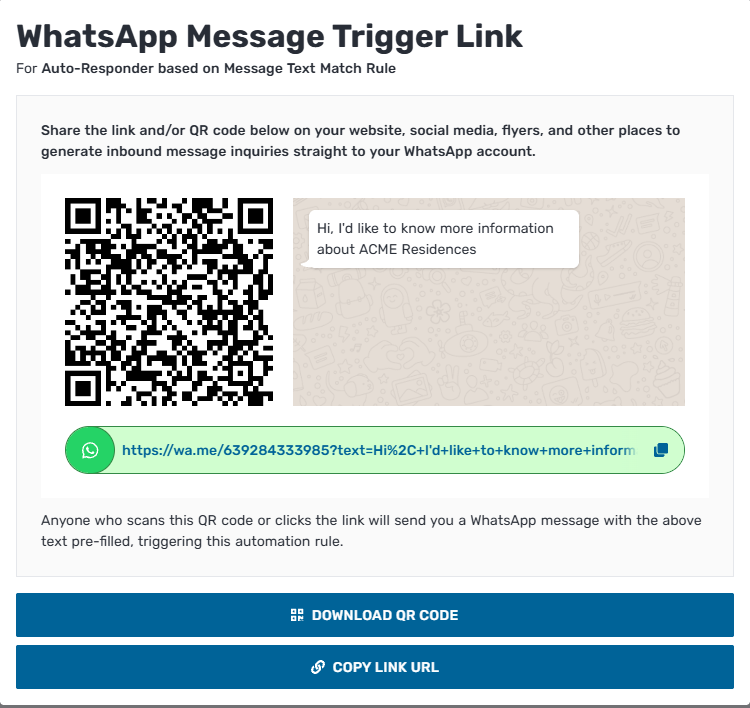
a. When creating a message text match rule, you can also generate a unique WhatsApp link or QR code directly in Privyr. Set the pre-filled message that prospects will send, then share the link or QR code anywhere you want to generate WhatsApp enquiries. Display it on your flyers, business cards, social media profiles, websites, or even in-store.
b. When someone scans the QR code or clicks the link, WhatsApp opens with your pre-filled message. Once they send it, Privyr matches the message to your rule and automatically sends the response you’ve set up.
c. AI Lead Qualification Agent: You can create a rule that will automatically qualify leads by asking specific questions in a natural, conversational manner.
- This part of Privyr’s WhatsApp Automation will be AI-powered, but you’ll still have full control over what the AI can ask, what information it can provide, and how it engages with your leads. You decide how the agent should qualify your leads, while AI handles the conversation naturally.
4. Once completely configured, click on ACTIVATE RULE
5. Create as many rules as you need for the enquiries you commonly receive.
Once you’ve set your Inbound Inquiry Automation Rules, they run continuously in the background. You only need to set them up once; Privyr takes care of matching and responding to every future enquiry that fits.
Now whenever a prospect messages you on WhatsApp, Privyr can provide a useful first response immediately. You only need to step in when the lead is qualified and you can take the conversation further.
The core strength of the Inbound Inquiry Auto-Responder is the ability to set up multiple rules, so different enquiries automatically trigger different, tailored responses.
So instead of: Any enquiry → Same auto-reply
You now can set up:
- Enquiry A → Response A
- Enquiry B → Response B
- Enquiry C → Response C
Each rule works independently, so your prospects always get a response that’s relevant to what they actually asked and not a generic message that may not answer their question.
For example, imagine a real estate agent who receives WhatsApp enquiries for several property listings. They could set up their WhatsApp Auto-Responder rules like this:
- Property enquiry: “Hi, I saw your ACME Residences ad. Can I get more information?”
- Automatically send the ACME Residences brochure and ask whether the prospect is buying for investment or own stay.
- Price enquiry: “How much is a 3-bedroom unit?”
- Automatically send the latest price list.
- Floor plan enquiry: “Floor plan ACME Residences”
- Automatically send the relevant floor plan.
- General enquiry: “Hi, I’m looking for a property.”
- Automatically ask about budget, preferred location.
This means your automated responses can be tailored to the specific products, properties, services, campaigns, or questions that your prospects often ask about.
Setting Up WhatsApp Auto-Responder for PropertyGuru Leads
If you use PropertyGuru to find leads, you probably receive WhatsApp enquiries from your leads all the time. Yet whenever one comes in, you’re still manually sending the same response and trying to figure out whether the lead is genuine.
With Privyr’s Inbound Inquiry WhatsApp Auto-Responder, you can now fully automate your responses, follow-ups, and lead qualification for every PropertyGuru enquiry. You can respond instantly to different enquiries, even when you’re busy or offline.
Example:
- Enquiry about Property A: automatically receives Response A
- Enquiry about Property B: automatically receives Response B
And it doesn’t stop at one message. You can also automatically send multiple follow-ups if the lead doesn’t respond, and even use AI to qualify the lead for you.
To set up the Inbound Inquiry WhatsApp Auto-Responder for PropertyGuru, here are the steps that you can follow:
- On your Privyr web, go to the Automations tab > WhatsApp > Inbound Inquiry Auto-Responder
- In the top right corner, please confirm that you’re creating the rules for the appropriate WhatsApp Business number
- Then, click on + Add New Rule > Message Text Match.
- When setting up the trigger, please select the matches exactly option.
- Next, copy and paste the exact WhatsApp message that the exact WhatsApp message you received from your PropertyGuru leads
- If you want an extra layer of coverage, you can also set up a fail-safe rule to ensure no inquiry falls through the cracks.
- For example, you can set your trigger as any message that starts with option: “Hi Jason Lee,” since PropertyGuru enquiries are typically addressed to your name. This will catch any enquiry that doesn’t match your specific listing triggers.
- Then, click on Next > Send Automated Messages
- Enter the message that you’d like to send automatically to your clients via WhatsApp
- Then, click Update
- You can add multiple messages to your automation and set an interval after the first message is sent. If the lead doesn’t respond within that time, the next message will be sent automatically as a follow-up, so you don’t have to remember to chase them yourself.
- You can also click on Exit Criteria if you would like to stop sending automated messages if any or both of the following criteria below are met:
- Lead replies to the conversation
- You manually send a WhatsApp message
- Lastly, click Save > Activate
That’s it! Now every PropertyGuru enquiry on WhatsApp will receive an instant, relevant response from your WhatsApp Business number – complete with automatic follow-ups and AI lead qualification.

If you have different PropertyGuru listings, you can create multiple rules for each one, ensuring every property has its own custom auto-response.
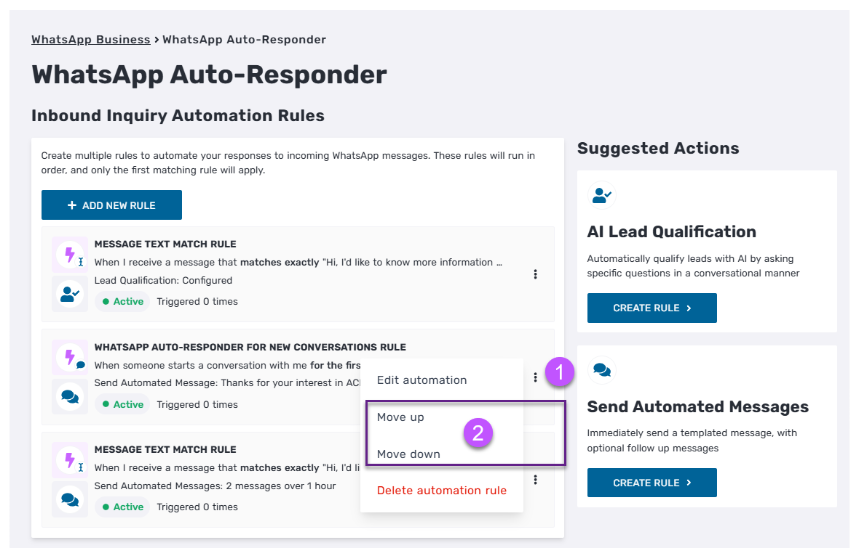
Please note that the rules run in order from top to bottom, and only the first matching rule will apply to each inquiry. You can always reorder your active rules by clicking on the “…” and moving them up or down.
Managing your WhatsApp Connection
Refer to the relevant sections in our Using WhatsApp Business Automations with Privyr guide for detailed steps on disconnecting and troubleshooting your WhatsApp Business number.
WhatsApp Auto-Responder FAQs
What is a WhatsApp Auto-Responder?
A WhatsApp Auto-Responder automatically sends a message when a person contacts a business on WhatsApp. Privyr WhatsApp Auto-Responder lets businesses create multiple rules so different enquiries can receive customised automated responses.
Can I create multiple auto-replies in WhatsApp Business?
WhatsApp Business provides built-in Greeting and Away Messages for automatic responses. For businesses that need different responses for different enquiries, Privyr WhatsApp Auto-Responder lets you create multiple rules, with each rule triggering its own response.
Can Privyr automatically respond to different WhatsApp enquiries?
Yes. Privyr WhatsApp Auto-Responder lets you define multiple rules for different inbound enquiries. Each rule can have its own automated response.
Can Privyr send a brochure or price list automatically on WhatsApp?
Yes. You can include links to brochures, price lists, floor plans, and other useful information in your automated responses.
Can Privyr automatically ask qualifying questions on WhatsApp?
Yes. You can create automated responses that ask qualifying questions, such as a prospect’s budget, preferences, or other information relevant to your business.
By enabling the AI Lead Qualification Agent rule for all new conversations, Privyr’s WhatsApp AI can automatically ask these questions for you in a natural and conversational manner. It qualifies new leads for you, so you can focus on those who are actually a good fit.
Is Privyr WhatsApp Auto-Responder AI?
Yes, Privyr WhatsApp Auto-Responder is rule-based automation with AI built in. You define the triggers and set the responses, so you always stay in control of what gets sent. The AI adds two optional layers on top:
- AI Lead Qualification Agent: Enable this rule if you want Privyr’s WhatsApp AI to automatically qualify leads by asking specific questions in a conversational manner.
- Intent match: Enable this so leads still receive the correct automated response even if they phrase things differently from your exact triggers.
Both are optional. If you do not enable them, Privyr’s WhatsApp Auto-Responder runs purely on the rules and templates you set up.
Is Privyr WhatsApp Auto-Responder free?
Privyr WhatsApp Auto-Responder is currently available for free for a limited time.
Where can I set up Privyr WhatsApp Auto-Responder?
You can set it up in Privyr Web → Automations → WhatsApp Automations → Inbound Inquiry Auto-Responder.
Will I lose access to my WhatsApp Business app if I connect my number to Privyr?
No. You can continue using your WhatsApp Business app as usual after connecting your number to Privyr. You won’t lose your existing contacts, chats, groups, or other data.
Privyr is a verified Meta Business Partner, and its WhatsApp integration is designed to work alongside your existing WhatsApp Business account. You can keep using your WhatsApp Business app on mobile or web, while Privyr handles your automated lead responses in the background.
You can also verify Privyr’s official WhatsApp Business integration directly in your WhatsApp Business app. Once connected, go to Settings → Account → Business Platform and check that Privyr is listed as an official business platform.
Your existing WhatsApp Business account and data stay with you. Connecting Privyr doesn’t mean moving to a new WhatsApp account or number.
What’s the difference between Privyr’s WhatsApp Auto-Responder and New Lead Auto-Responder?
“WhatsApp Auto-Responder” in Privyr typically refers to Inbound Inquiry Auto-Responder, which automatically replies when a lead sends a message on WhatsApp, matching the enquiry to the appropriate response.
“New Lead Auto-Responder” operates on a separate trigger: it automatically messages a new lead as soon as they are captured through an integration, such as Facebook Lead Ads, Google Ads, or website forms, even before the lead has made contact.
The core distinction is the trigger type: Inbound Inquiry Auto-Responder responds to a message sent by the lead, while New Lead Auto-Responder responds to the creation of a new lead.