
Introduction
You can connect Privyr to your HubSpot account to receive newly added contacts and new leads from your HubSpot form submissions in your Privyr account. This gives you instant new lead alerts and automatically creates the leads in your client list so you can immediately contact them.
Note that you’ll need to have a HubSpot account, which may require a certain subscription tier to configure the integration.
Connecting to your HubSpot Account
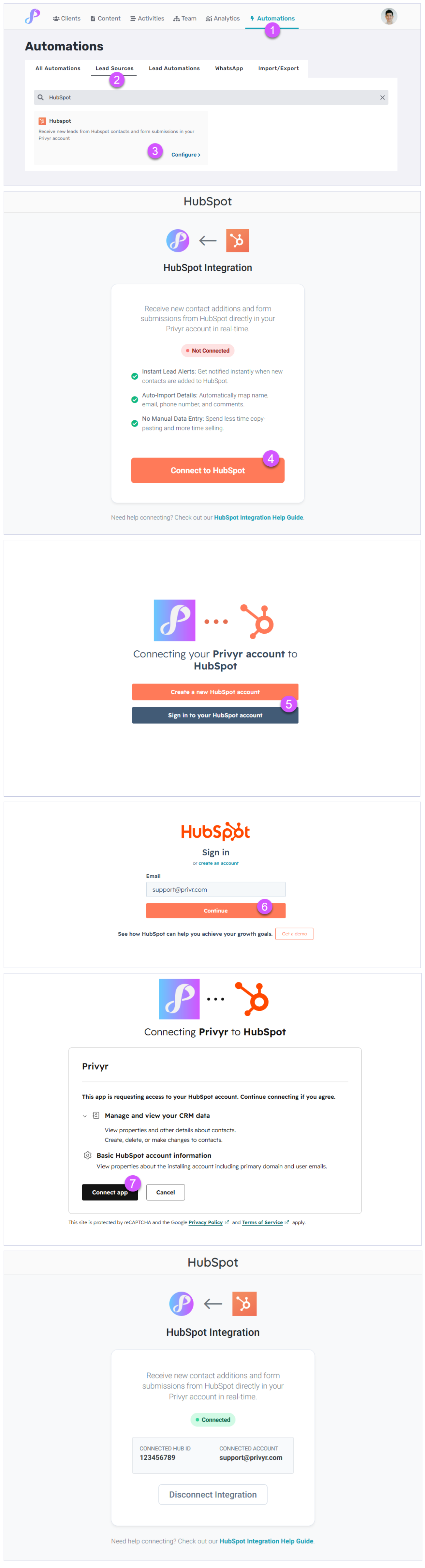
Connecting your Privyr account to your HubSpot account only takes 30 seconds, and can be done directly within the Privyr mobile app or website:
- From your Account tab, tap on Integrations
- Tap on Lead Sources and select HubSpot
- Log in to your HubSpot account
- Tap on Connect App
- That’s it! You’ll see a Connected status on your HubSpot integration page confirming that you’ve successfully connected to your Privyr account
Newly added contacts and new leads from your HubSpot contact form submissions will flow through to your Privyr account going forward.
New Lead Alerts
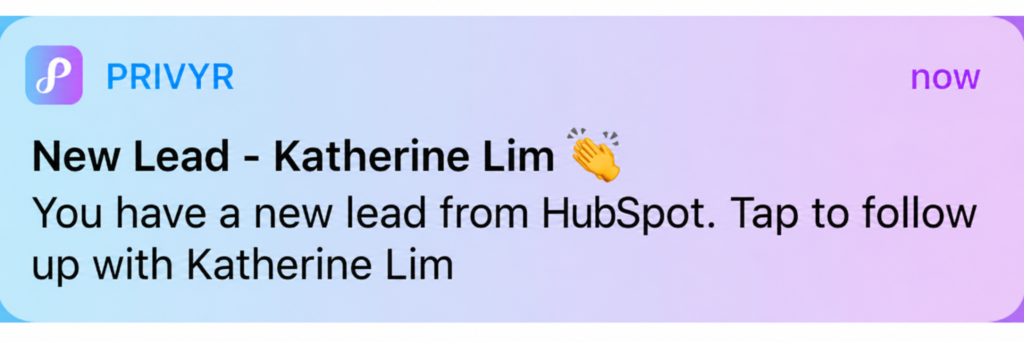
Once you connect HubSpot to your Privyr account, any newly added contact or new leads from your HubSpot contact form submission will send you a new lead alert via the Privyr app and email. You can configure these alerts via your Account Notification Settings.
Tap the alert to view the lead with all the captured information displayed on their notes field. You can immediately contact them or send an auto-personalised Quick Response.
You can also enable additional alerts if you haven’t acted on a new lead within 15 minutes and 60 minutes, in case you missed the first notification. You can enable these extra alerts via your Account Notification Settings.
All new leads from your HubSpot will be displayed with an UNCONTACTED label in their client details and the client list until you act on them. They’ll also appear in your Uncontacted Leads group and Actions tab.
Depending on your Uncontacted Leads Settings, the UNCONTACTED label may be automatically removed when you view the lead, click their contact buttons, send them content, and/or set a follow up date. You can also manually mark or unmark a lead as UNCONTACTED via the options menu when viewing the lead.
WhatsApp Auto-Responder
You can set up a WhatsApp Auto-Responder to instantly message new leads on HubSpot. Any new lead you receive via your integrations will be immediately and automatically messaged from your own WhatsApp number, even when you’re busy or offline.
All messages are sent from your existing WhatsApp Business number, so you can view and continue all conversations directly in the WhatsApp Business app on your phone or laptop.
Privyr’s Auto-Responder works through WhatsApp’s official APIs (Privyr is a verified Meta Business Partner), keeping your WhatsApp account and data safe while complying with WhatsApp’s Terms and Conditions.
For more information on setting this up, view our full guide on WhatsApp Auto-Responder.
Distribute HubSpot Leads to other Recipients
You can automatically share leads from HubSpot with other recipients via email, even if they don’t have a Privyr account. This is useful if you’d like to distribute leads to your clients or colleagues, and can be configured to forward all leads to all recipients, or distribute leads equally in a Round Robin fashion.
Recipients will receive new lead details instantly via email and/or the Privyr app, with attribution ‘This lead was sent to you by @name at @company’ (where @name and @company are replaced with the Name and Company from your User Profile, respectively).
Find out more about Automatic Lead Distribution.
Disconnecting from HubSpot
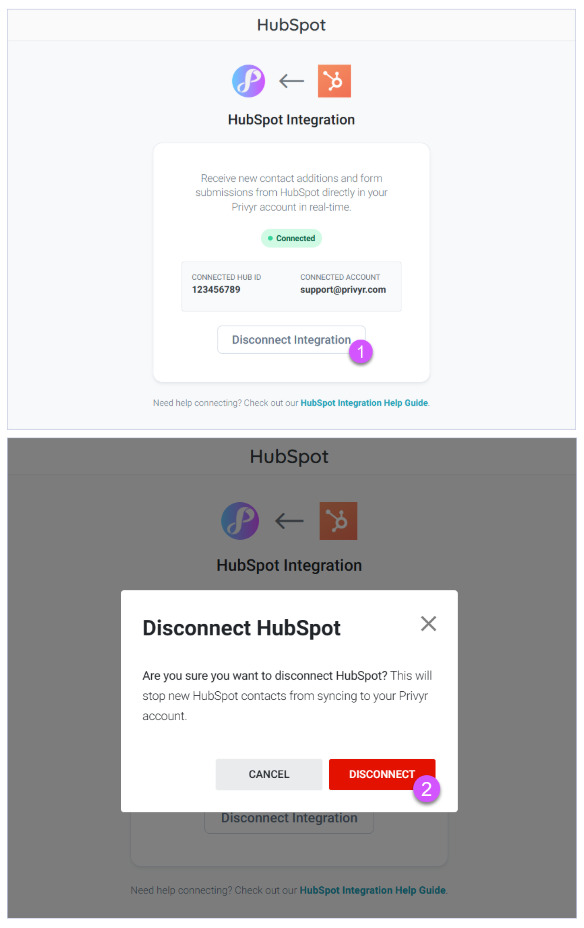
You can completely disconnect your Privyr and HubSpot accounts to stop receiving new leads from HubSpot. This can be useful if you want to change HubSpot accounts or prevent access to those HubSpot leads going forward.
To fully disconnect your HubSpot Account, go to your Account tab > Integrations > Lead Sources > HubSpot and tap on Disconnect Integration.