Your Activity Timeline helps you review past interactions and prepare for upcoming activities across your clients. Use it to see what you’ve worked on, check what’s coming up, and find specific activities without opening each client’s profile.
Activity Timeline on Web
Opening Your Activity Timeline
Log in to Privyr Web and click the Activities tab to browse your past and upcoming activities.
Navigating with the Calendar
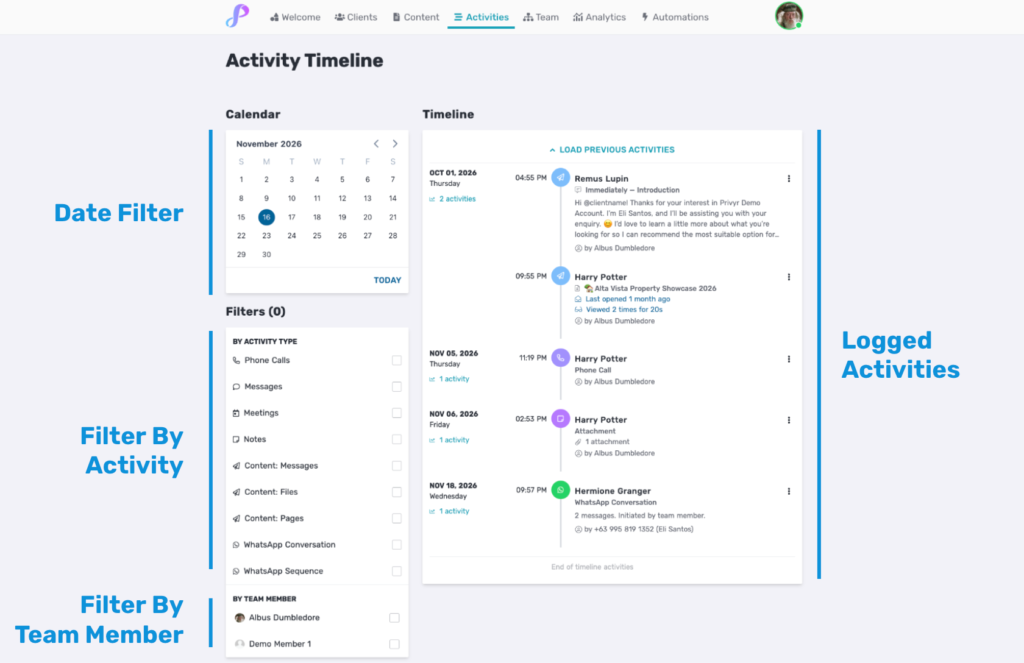
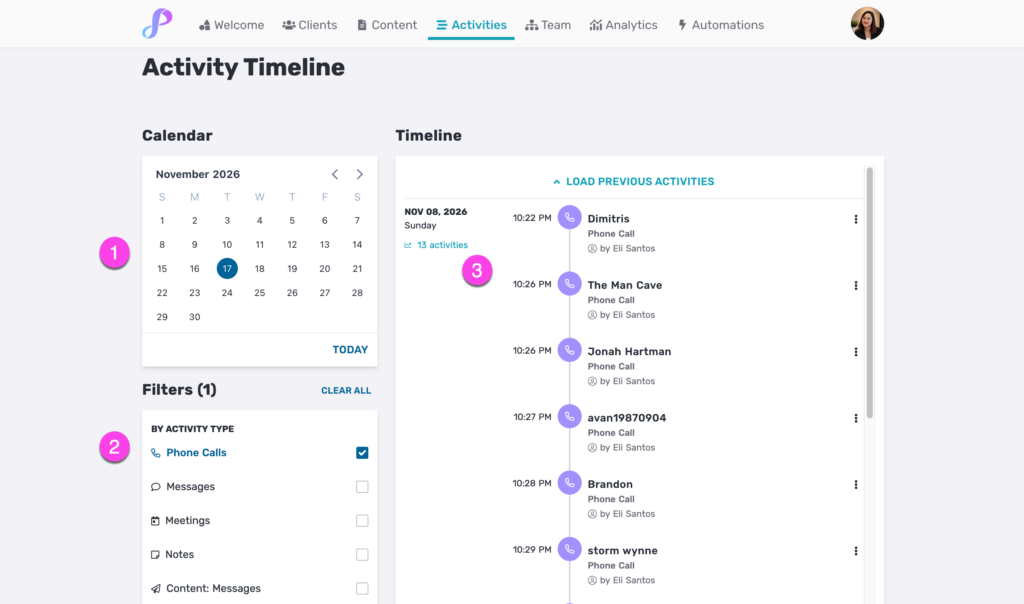
Use the Calendar on the left to navigate to a date. Click the left or right arrow beside the month to move between months, then select a date to view that point in your timeline. Click TODAY to return to the current date.
To view earlier entries, click LOAD PREVIOUS ACTIVITIES at the top of the Timeline.
Filtering Your Activities
The Filters section appears below the Calendar. Under BY ACTIVITY TYPE, select the checkboxes beside the activities you want to view:
- Phone Calls
- Messages
- Meetings
- Notes
- Content: Messages
- Content: Files
- Content: Pages
- WhatsApp Conversation
- WhatsApp Sequence
If you use Privyr with a team, the BY TEAM MEMBER section lets you narrow the timeline to selected members.
Clear a selected checkbox to remove that filter.
Understanding Your Timeline
Activities appear on the right, grouped by date. Each date shows the number of activities listed for that day.
An entry can display:
- The activity time and associated client.
- The activity type or shared content title.
- A preview of the message or activity details.
- Attachments, where included.
- Who recorded or sent the activity.
Shared content may also show engagement information, such as when it was last opened, how many times it was viewed, and the time spent viewing it.
Click the three-dotted menu beside an entry to see the available options for that item.
Tip: Use the Calendar and Filters together—for example, to review phone calls from a previous week or find content you recently shared with clients.
Editing and Deleting Activities
Editing an Activity
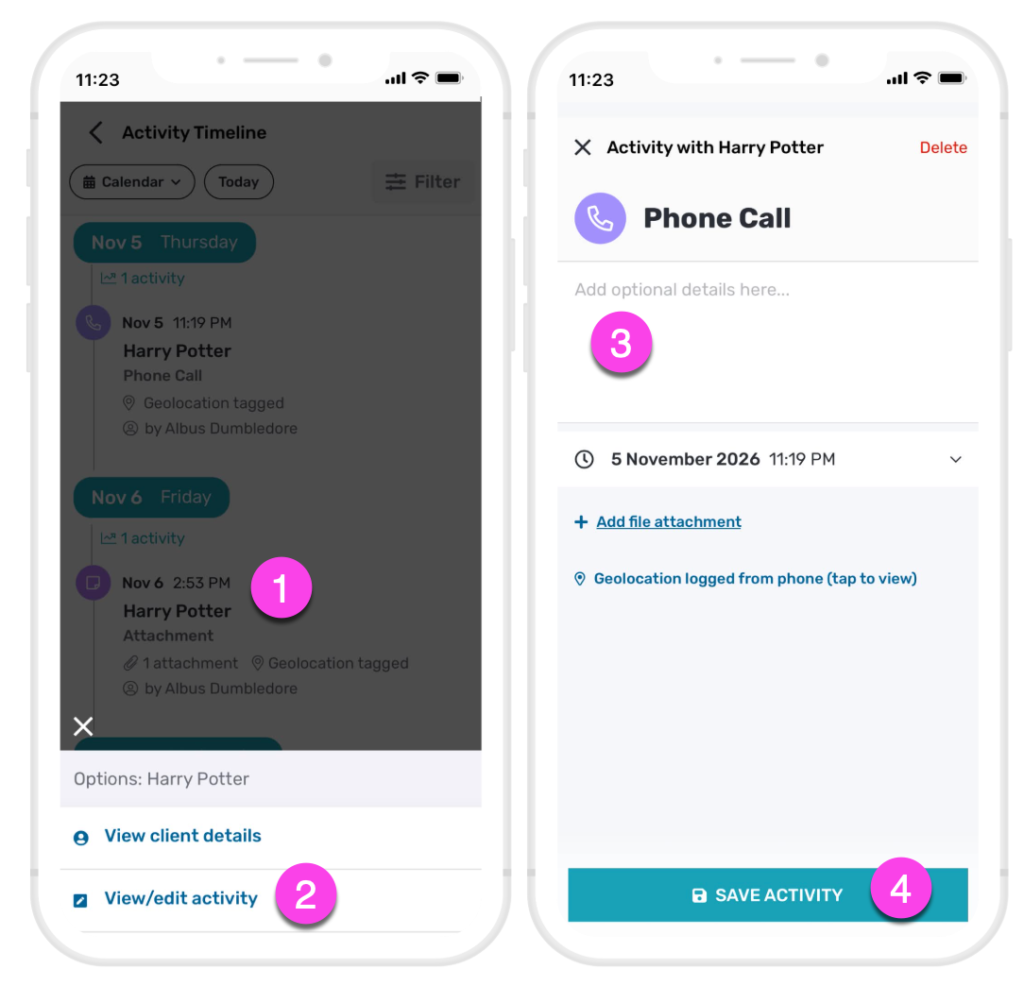
For editable activities, such as phone calls, meetings, and notes, click the three-dot menu beside the entry you want to update and select the edit option. Update the activity details, then save your changes.
Entries for content already shared with a client, such as Messages, Files, and Pages, cannot be edited because they reflect what was sent. Depending on the content type, you can view the client’s details, open the content details, or check detailed viewing statistics.
Deleting an Activity
Click the three-dot menu beside the entry you want to remove, then select Delete activity and confirm the deletion when prompted.
Note: Deleting a shared File or Page entry also invalidates its shared link, so the client will no longer be able to access that content through the link.
Viewing Upcoming and Past Activities on Mobile
Check what’s coming up and revisit previous client interactions from the Privyr app. You can find scheduled activities, review your records, and make updates while on the go.
Accessing Your Activities
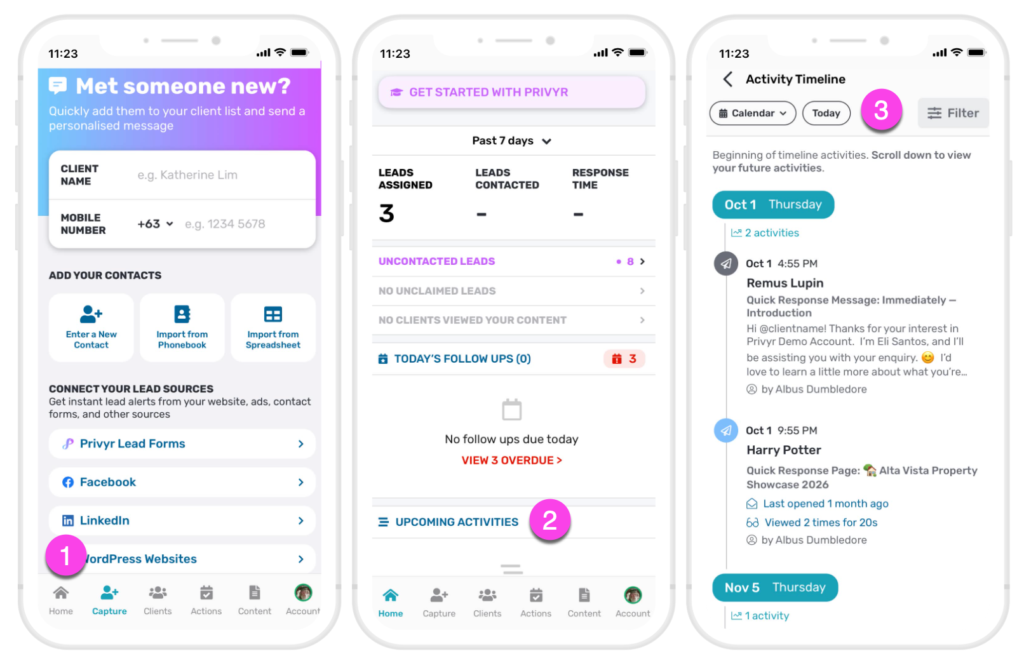
Tap Home in the bottom menu of the Privyr app, then scroll to the Upcoming Activities section to open your timeline, or See Past Activities to review earlier entries.
Find Activities by Date
Use the calendar to check a particular day, whether you’re preparing for an appointment or reviewing a previous conversation.
Tap Calendar at the top of your Activity Timeline and select the date you want to view. Scroll through the activities listed, or tap Load Previous Activities to display earlier entries. To return to the current date, tap Today.
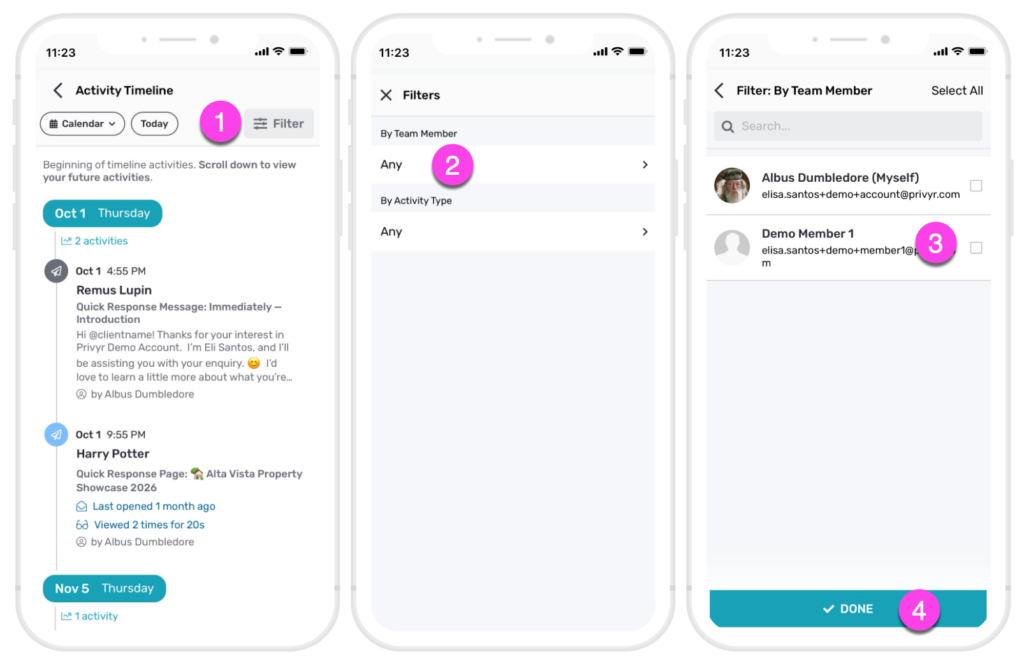
Filtering by Team Member
If you use Privyr with a team, tap Filter and select the members whose activities you want to view under By Team Member. Tap Done to apply your selections.
You can combine this with By Activity Type to find specific interactions, such as phone calls recorded by a particular member. To remove a selection, open Filter again, deselect the member, and tap Done.
Filtering by Activity Type
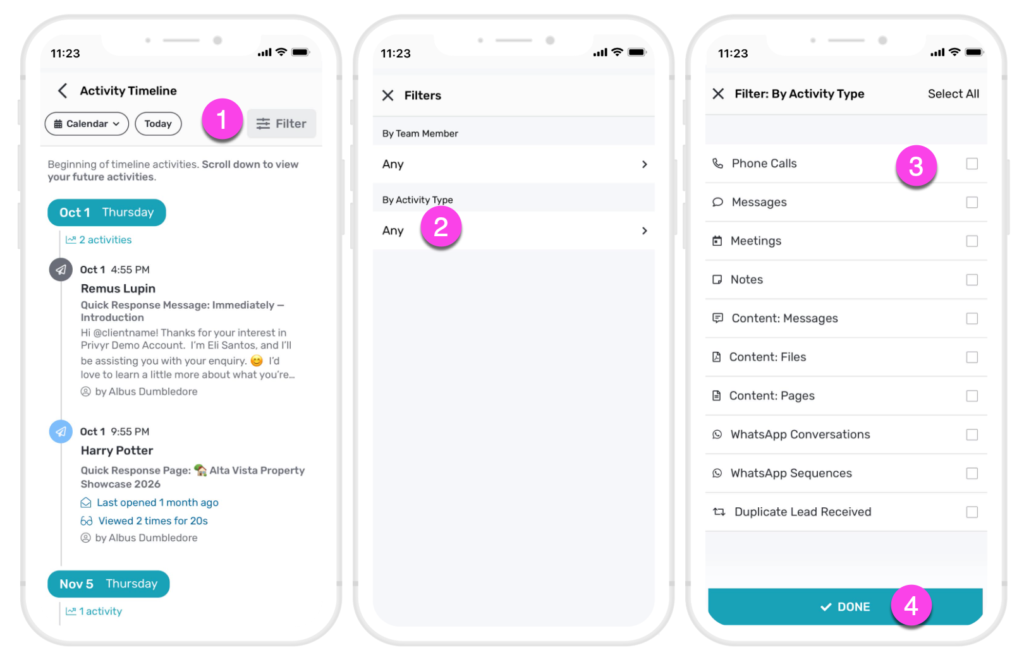
Tap Filter on your Activity Timeline, then select the relevant options under By Activity Type. You can narrow your timeline to calls, messages, meetings, notes, or content you’ve shared. Tap Done to apply your selections.
To remove a selection, tap Filter again, deselect the activity type, and tap Done.
Viewing and Updating an Activity
Tap an entry on your timeline to view its details and available actions. For editable activities, select the edit option, update the details, and save your changes. To remove an entry, select the delete option and confirm when prompted.
Shared content entries cannot be edited. Deleting a shared File or Page entry also makes its shared link inaccessible to the client.