
Introduction
WhatsApp Chat Monitoring gives you access to your team’s WhatsApp conversation history with their leads and clients, directly within Privyr.
With this official WhatsApp integration, you can:
- See every conversation between your salespeople and their clients in real time
- Connect multiple WhatsApp Business numbers – which only takes a few minutes
- Train your team based on real conversations and provide targeted coaching
- Coordinate better when multiple team members are talking to the same lead
- Ensure quality and compliance by reviewing actual chat histories
As a verified Meta Business Partner, Privyr’s WhatsApp Chat Monitoring works through WhatsApp’s official APIs, keeping your team’s WhatsApp accounts and data safe while complying with the platform’s Terms of Service.
Enabling WhatsApp Monitoring for Your Account
WhatsApp Chat Monitoring is a paid add-on to the Privyr Ultimate plan. To enable this feature for your account, please contact our sales team here.
Connecting Your Team’s WhatsApp Numbers
Once enabled, you can start connecting your team members’ WhatsApp Business numbers, which generally only takes a few minutes. To do so:
- On the Web version of Privyr, go to your Automations tab.
- Navigate to the WhatsApp Automations section.
- Find WhatsApp Chat Monitoring and click Configure.
- Click Add New Number.
- Choose WhatsApp Business App in the pop-up.
- Click Login with Facebook and follow the on-screen instructions.
- Your team member will need to:
- Scan a QR code to verify the connection.
- Accept and grant permissions to share their client conversations with your Privyr account.
Note: This is an official WhatsApp integration. Team members must be using the WhatsApp Business app (not the regular WhatsApp app) to connect their number to WhatsApp Monitoring.
Verifying successful connection
Once connected to Privyr, team members can verify the connection in their WhatsApp Business App:
- Open WhatsApp Business on their phone.
- Go to Settings > Account > Business Platform.
- They’ll see Privyr Pte. Ltd. listed, confirming the official integration.
After connecting, you’ll see the team member’s number listed in your WhatsApp Monitoring setup page. Privyr will start tracking conversations for all numbers listed on this page, as long as they are linked to leads in your account.
Viewing WhatsApp Conversations
There are two ways to view your team’s WhatsApp conversations directly in Privyr:
- View on any Client Details page
- View on Consolidated Activity Timeline
Viewing on Client Details
To view your team’s WhatsApp chats with a specific client by:
- Open any client on Privyr web.
- Tap the View WhatsApp Chats button.
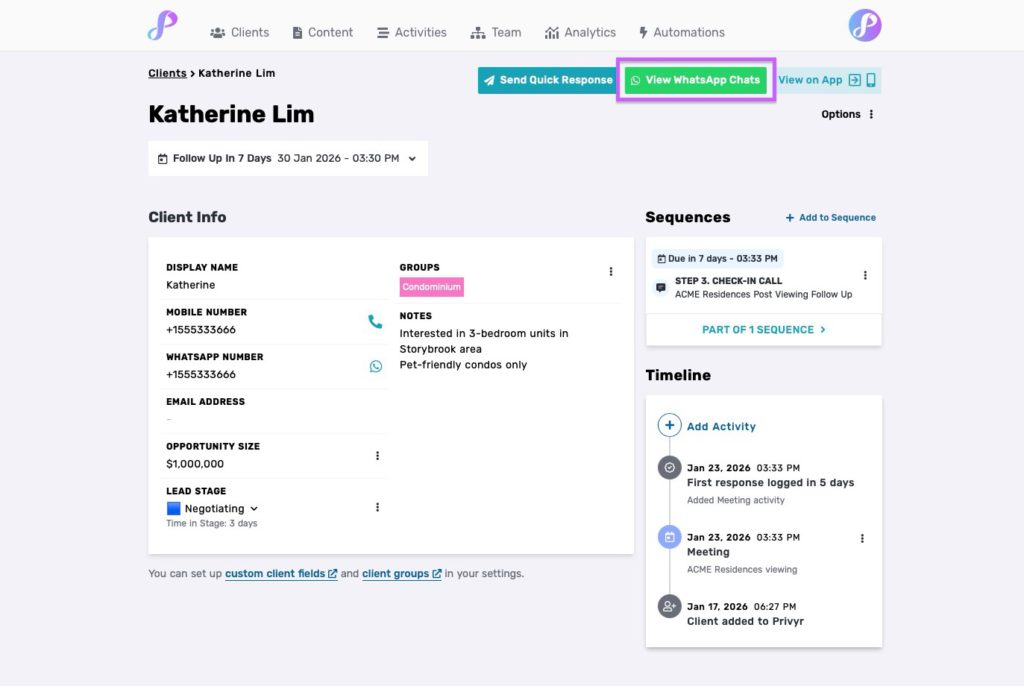
A pop-up will appear, allowing you to scroll through the conversation as it appeared in WhatsApp. The chat log will show all messages since the date the WhatsApp number was connected to Privyr.
If multiple team members are talking to the same client:
- You’ll first see a summary showing which team members have chatted with this client.
- You can click on any team member’s number to view their conversation history with the client.
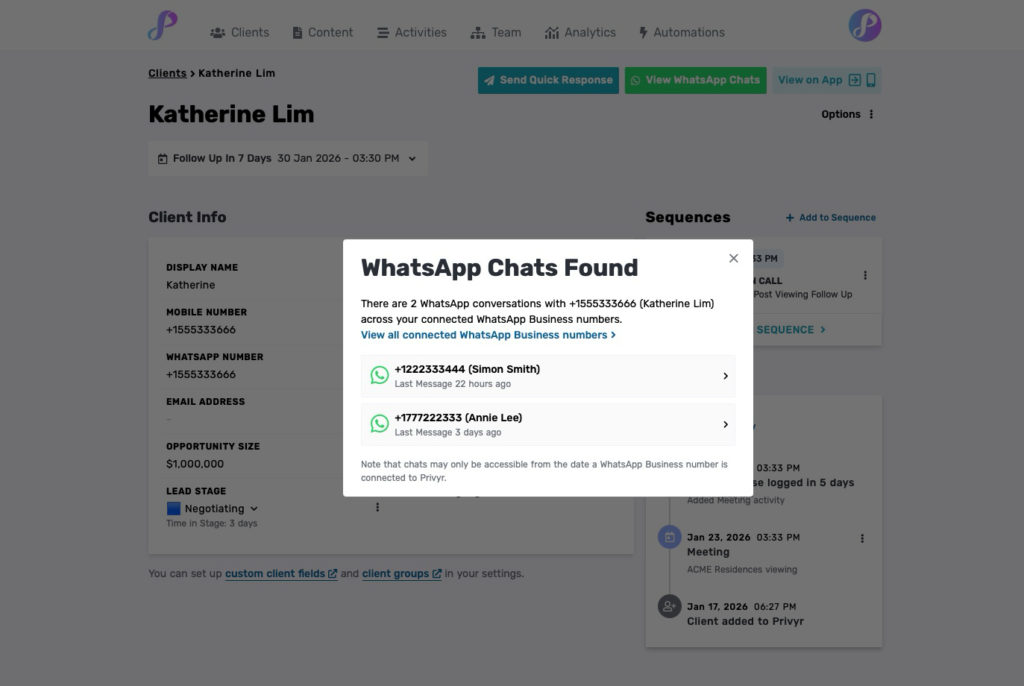
This gives you the full context, making it easy to align on what has been said or promised.
Viewing on Activity Timeline
All WhatsApp chat sessions are automatically summarized and logged to your team’s Activity Timeline, so you can easily review everything at a glance.
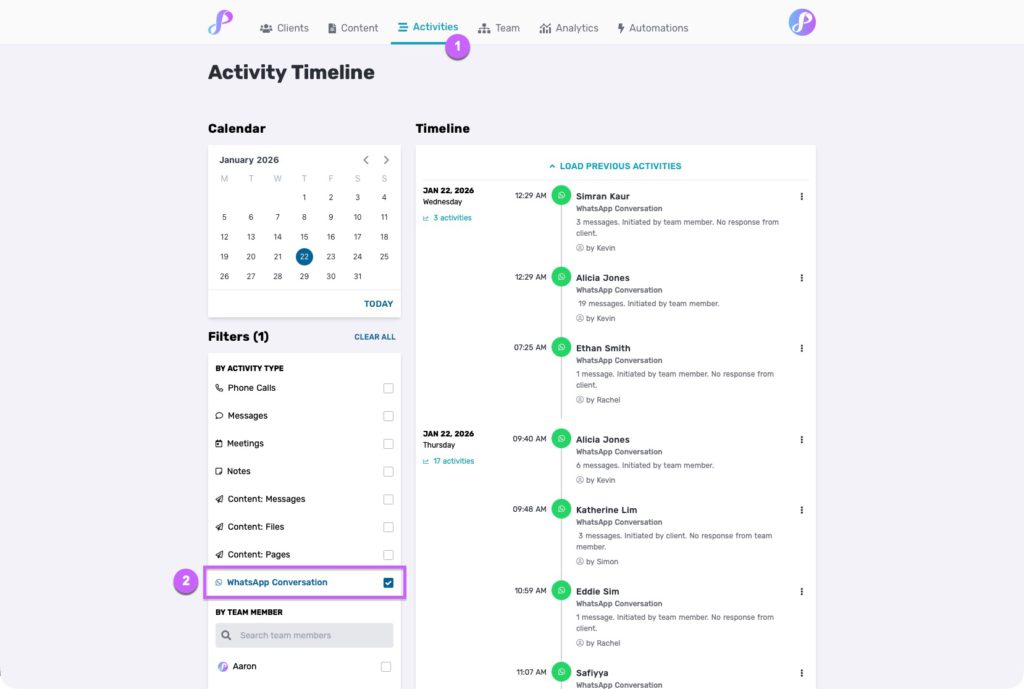
To view WhatsApp chats across all leads and team members:
- Go to your Activity Timeline on Privyr web.
- You’ll see WhatsApp Conversations listed alongside other follow-up activities.
- Apply Filters to view only WhatsApp Conversations. You can also filter conversations by date or team member.
- Each timeline entry will show:
- The number of messages exchanged in that session
- Who initiated the conversation
- Whether the lead or your team member responded
This gives you a complete overview of all WhatsApp activity across your entire team and client base.
Which WhatsApp chats are tracked
Once a team member’s WhatsApp Business number is connected to Privyr, chats are automatically logged only when the phone number is linked to an existing lead in Privyr.
This prevents your team member’s personal conversations (with family members or personal contacts) from being accessed through Privyr.
If a WhatsApp conversation isn’t linked to a lead, the chat will not be logged or visible in Privyr, ensuring your team’s privacy.
Tracking All Conversations
If your team uses dedicated business numbers, and you want all leads from WhatsApp to be tracked automatically, you can enable our Automatic WhatsApp Contact Import feature.
This will automatically create a new lead in Privyr whenever a new WhatsApp conversation is initiated by you or a prospect.
Managing your WhatsApp Connection
Refer to the relevant sections in our Using WhatsApp Business Automations with Privyr guide for detailed steps on disconnecting and troubleshooting your WhatsApp Business number.
Once a number is disconnected, Privyr will no longer have access to new conversations from that number.