Subteams allow you to organize team members into smaller groups within your main Team. This helps manage permissions and better control who can view clients assigned to specific team members. By properly configuring subteam permissions, you can ensure that each team member has the right level of access to perform their role effectively.
The following sections will show you how to create subteams, set permissions, and manage client access across your team. Note that you must have permission to Manage Team Members to perform all of these actions.
Creating a Subteam
A Subteam is a group of users within your main Team, created to organise members based on specific criteria like roles, regions, or projects.
Users with permission to Manage Team Members can create Subteams via the following steps:
- Navigate to the Teams Tab
- Select Subteams
- Click on + CREATE SUBTEAM
- Name your subteam then proceed to SELECT TEAM MEMBERS
- Select your team members then click DONE
At this point, your Subteam is essentially just a list of members without any functional impact. Being added to a Subteam does not affect client viewing, assignment, or any other actions until permissions are explicitly set. Please proceed to Configuring Permissions for Subteams to make your Subteam effective.
You can also leave the Subteam as is, which can help visually organize your team members and simplify team management.
Configuring Permissions for Subteams
When inviting or editing a team member, users with permission to Manage Team Members can grant other users permission to view clients assigned to specific subteams.
Under View Clients permissions, users will see the following options:
- Clients assigned to others: Allow user to view clients that are assigned to other team members. This also allows the user to assign and/or reassign clients to themselves or their teammates.
- Assigned to Any Team Member: Users can view and assign/reassign clients assigned to any team member
- Assigned to Selected Subteams: Users can view and assign/reassign clients assigned to members of the selected subteams
POINTS TO NOTE
- Being a member of a subteam does not automatically grant permission to View Clients assigned to the subteam
- Permissions need to be explicitly set in user settings
- A user does not need to be a member of a subteam to be granted permission to view clients assigned to that subteam.
User Permissions and Subteam Membership Combinations
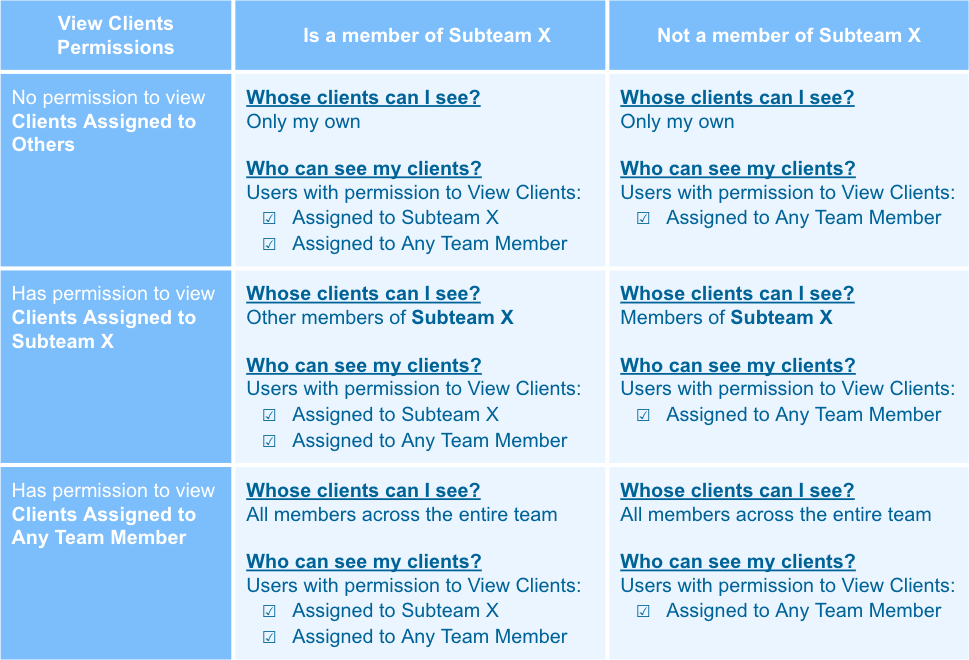
Sample Use Cases
Use Case 1: Hierarchical Subteam Structure
- Scenario: Your sales team is divided into regions – North, South, East, and West.
- Subteam Setup:
- Create subteams for each region
- Add sales representatives and regional managers to their respective regional subteams
- User Permissions:
- Sales Representatives:
- Member of their regional subteam
- No additional permissions
- Regional Manager:
- Member of their regional subteam
- Permission to view clients assigned to their subteam
- Senior Manager:
- Not a member of any subteam
- Permission to view clients assigned to all regional subteams
- Sales Representatives:
- Effective Results:
- Sales Representatives can view their own clients and nobody else’s.
- Regional Managers can view and assign/reassign clients assigned to anyone under their team.
- Sales Representatives cannot see the Regional Manager’s clients.
- Senior Manager can view and assign/reassign clients assigned to anyone in each regional team.
- Sales Representatives and Regional Managers cannot see the Senior Manager’s clients.
Use Case 2: Horizontal Subteam Structure
- Scenario: Your company has a customer support team handling various active client cases and they need to reassign clients to different Customer Support Representatives for specialised support.
- Subteam Setup:
- Create a Customer Support subteam
- Add all Customer Support Representatives to the subteam
- User Permissions:
- Customer Support Representatives:
- Member of the Customer Support subteam
- Permission to view clients assigned to their subteam
- Customer Support Representatives:
- Effective Results:
- Customer Support Representatives can view and assign/reassign clients freely among the Customer Support subteam, allowing them to redirect client cases to the most suitable subteam member more efficiently.
Use Case 3: Supporting Cross-Subteam Functions
- Scenario: Your company has a customer support team that occasionally receives sales opportunities that need to be reassigned to Sales Representatives
- Subteam Setup:
- Create a Sales subteam
- Add all Sales Representatives to the subteam
- Create a Customer Support subteam
- Add all Customer Support Representatives to the subteam
- Create a Sales subteam
- User Permissions:
- Sales Representatives:
- Member of the Sales subteam
- No other permissions
- Customer Support Representatives:
- Member of the Customer Support subteam
- Customer Support Managers:
- Member of the Customer Support subteam
- Permission to view clients assigned to the Customer Support subteam
- Permission to view clients assigned to the Sales subteam
- Sales Representatives:
- Effective Results:
- Sales Representatives view their own clients and nobody else’s
- Customer Support Representatives view their own clients and nobody else’s
- Customer Support Managers can view and assign/reassign all clients assigned to the Customer Support and Sales subteams. This allows them to redirect sales opportunities from the Customer Support subteam to the Sales subteam.
On/Off Duty Status for Team Members
The On/Off Duty Status feature allows teams to temporarily exclude users from receiving new leads through round robin lead assignment when they are unavailable, off duty, or on leave.
This helps ensure leads are only distributed to team members who are actively available while maintaining fair lead allocation across the team.
Sample Use Cases
You can use the Off Duty status for the following scenarios, such as when a team member is:
- On leave or vacation
- Out sick
- Temporarily unavailable
- Working outside their lead handling schedule
Use the On Duty status when a team member is available to receive new leads through the Lead Automation Rules.
Points To Note
Works Only with Lead Automation Rules
Duty status only affects leads assigned through Lead Automation Rules. It does not affect:
- Manual lead assignments
- Bulk lead reassignment actions
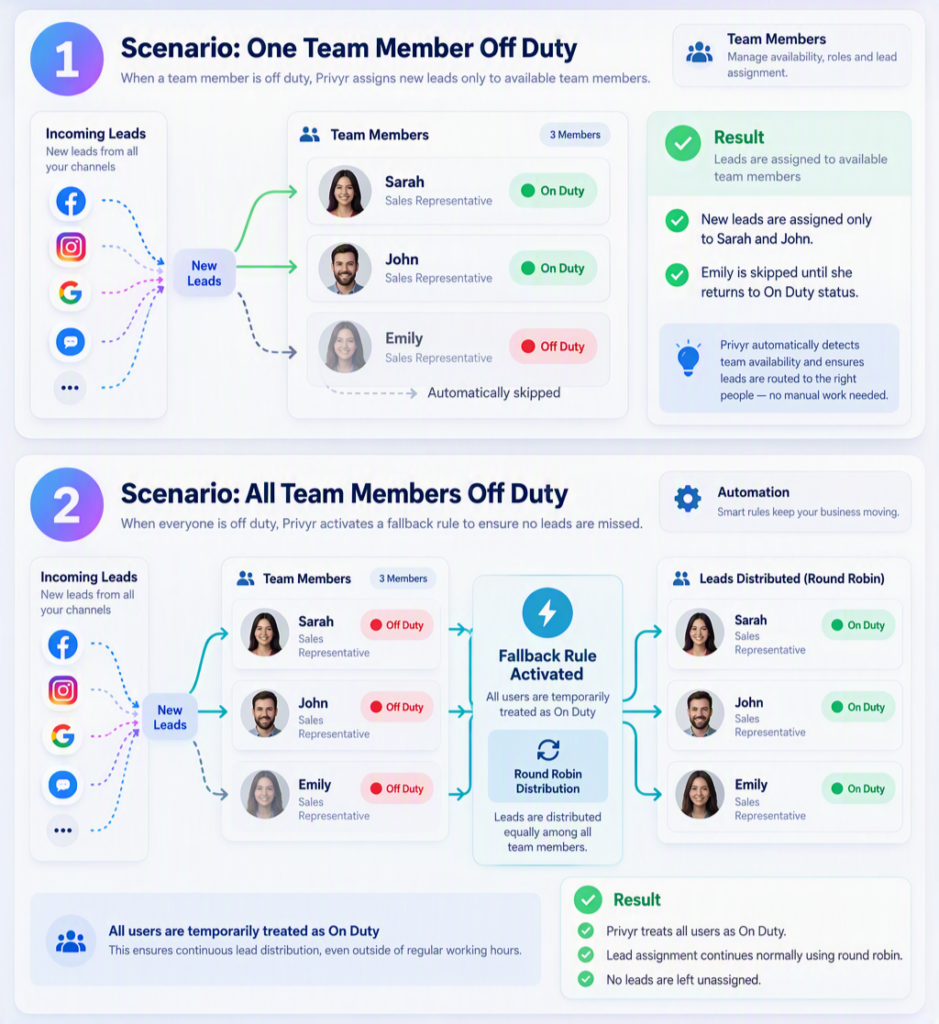
When All Members Are Off Duty
If every user included in an automation rule is marked as Off Duty, Privyr will automatically treat all members as On Duty and continue assigning leads via round robin.
- This prevents incoming leads from remaining Unassigned.
On/Off Duty Status is only applicable under the Privyr Ultimate Plan.
How Duty Status Works
User is ON Duty
When a team member is marked On Duty:
- They are eligible to receive leads from Lead Automation Rules.
- Leads continue to rotate through the round robin queue as usual.
User is OFF Duty
When a team member is marked Off Duty:
- They are excluded from round robin lead assignment of the Lead Automation Rules.
- New leads are distributed among the remaining On Duty members.
Understanding On/Off Duty Lead Assignment
How to Change Your Duty Status
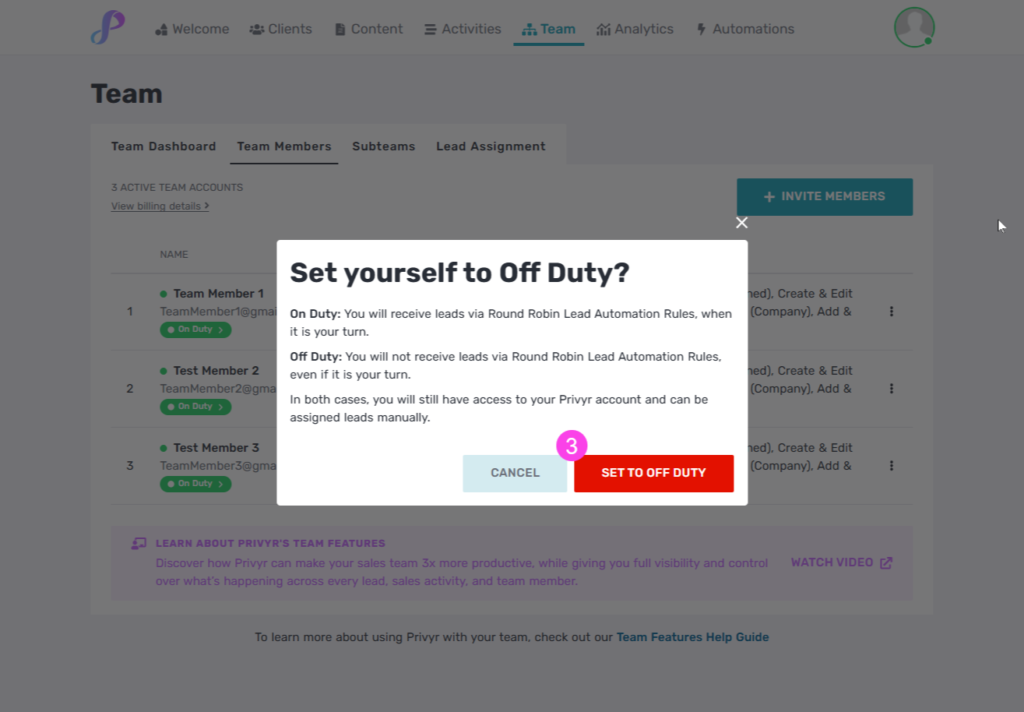
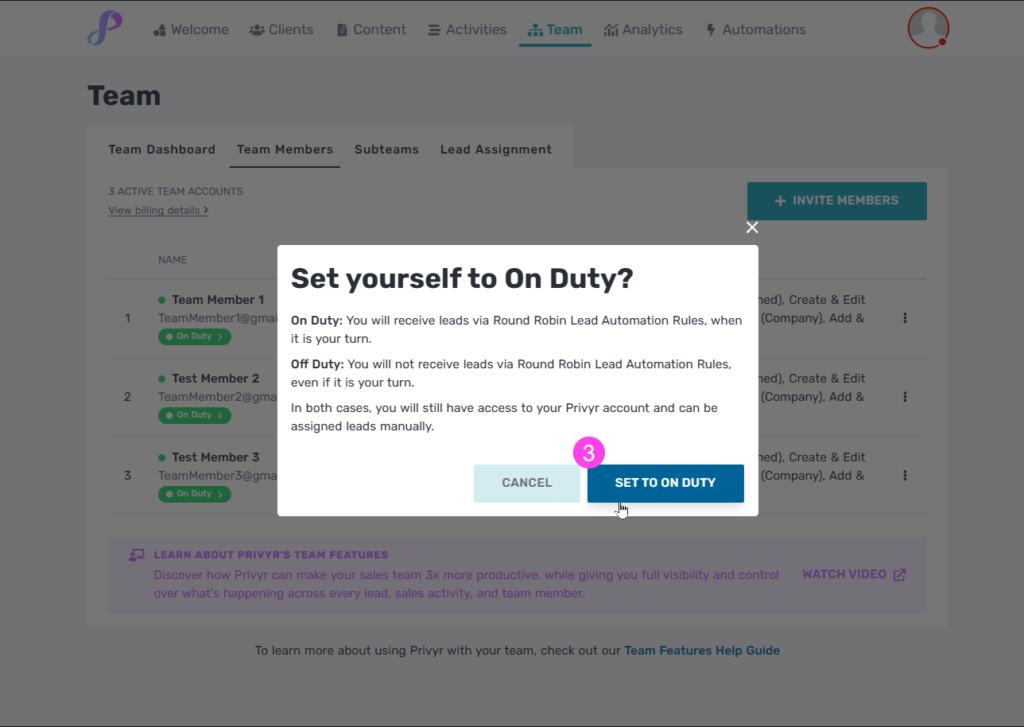
Toggle yourself between On/Off Duty Status
- Open your Profile.
- Locate the Duty Status setting.
- Select On/Off Duty.
- Your status will be updated immediately once you agree on the pop up screen.
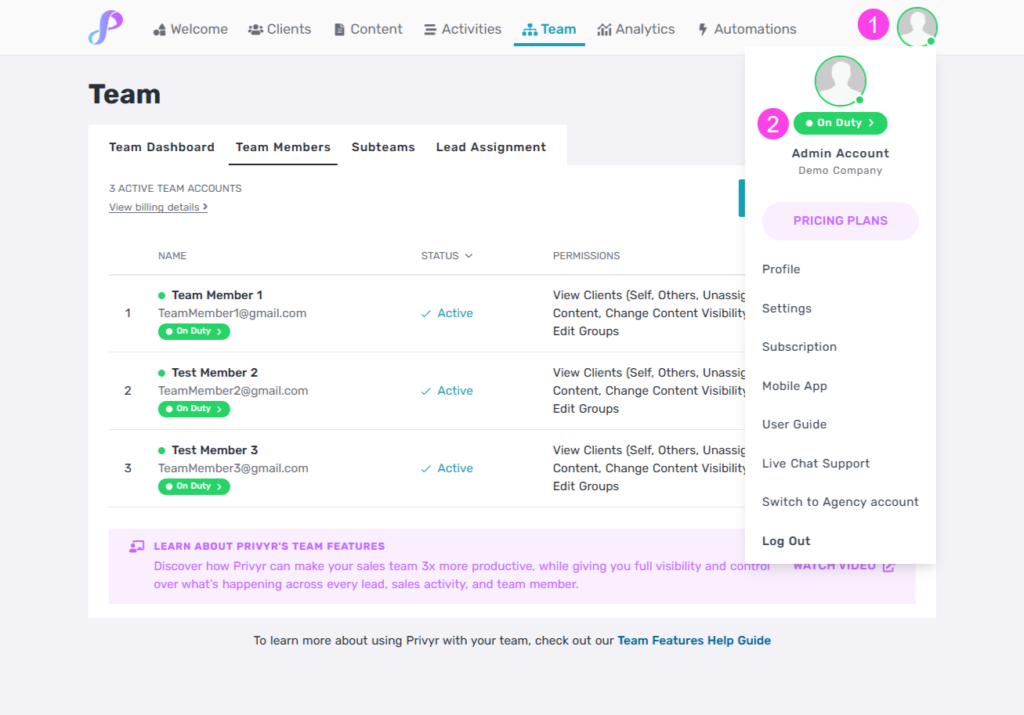
How to Change a Team Member’s Duty Status
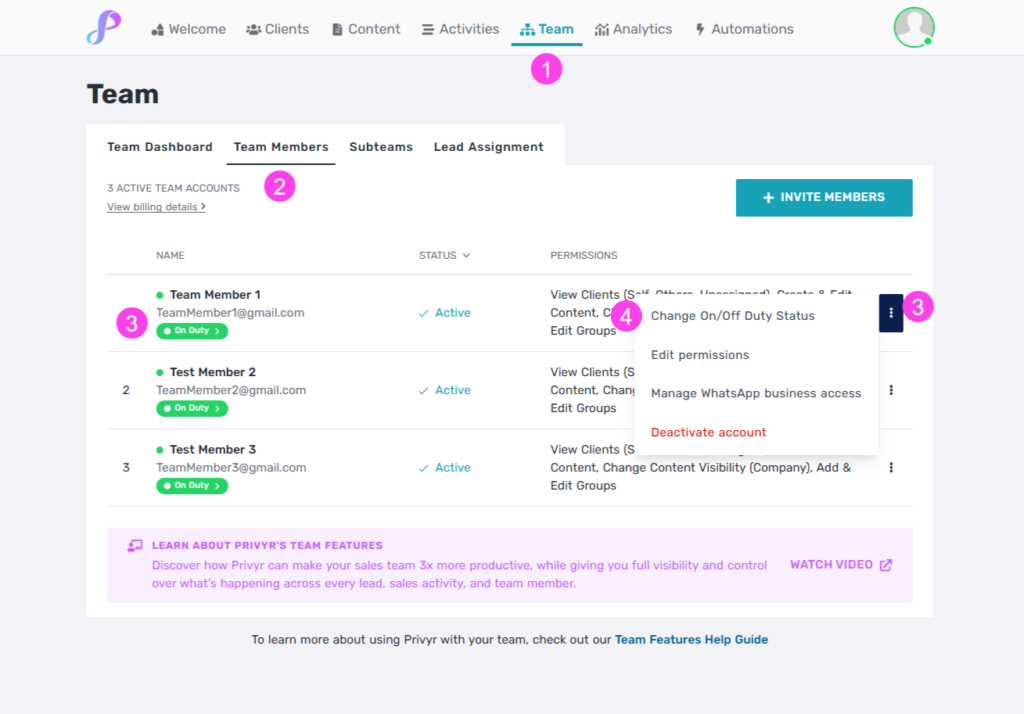
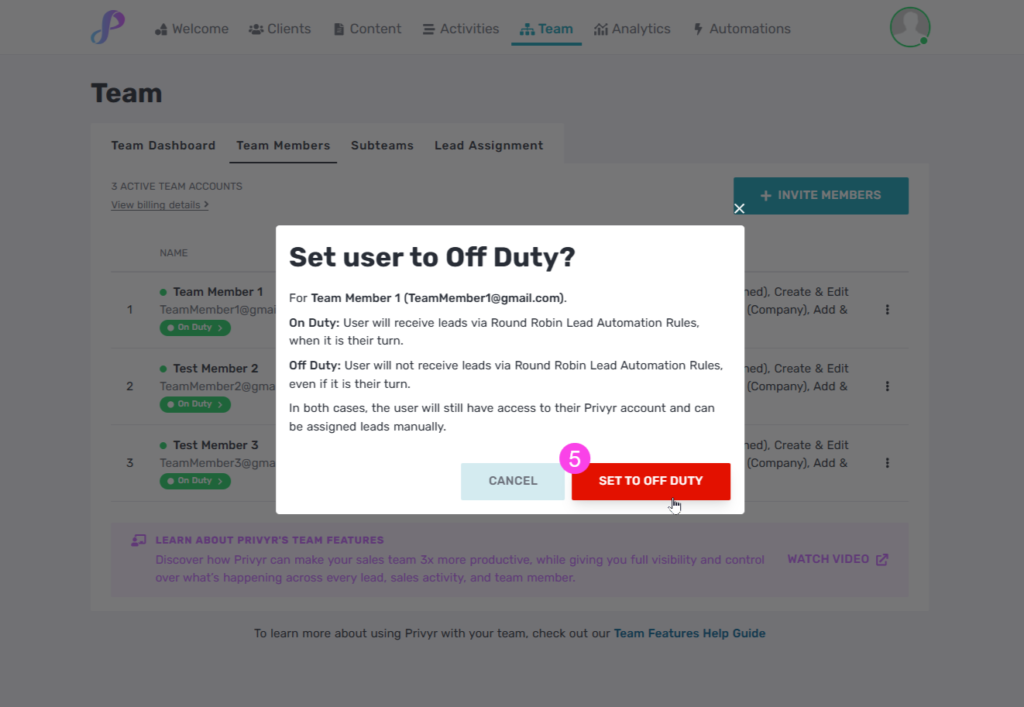
Set a Team Member OFF Duty
- Go to Team.
- Open the Team Members tab.
- Locate the user.
- Select the On/Off Duty Icon OR click the three dots on the right side of the team member and select “Change On/Off Duty Status”.
What You’ll See in Lead Automation Rules
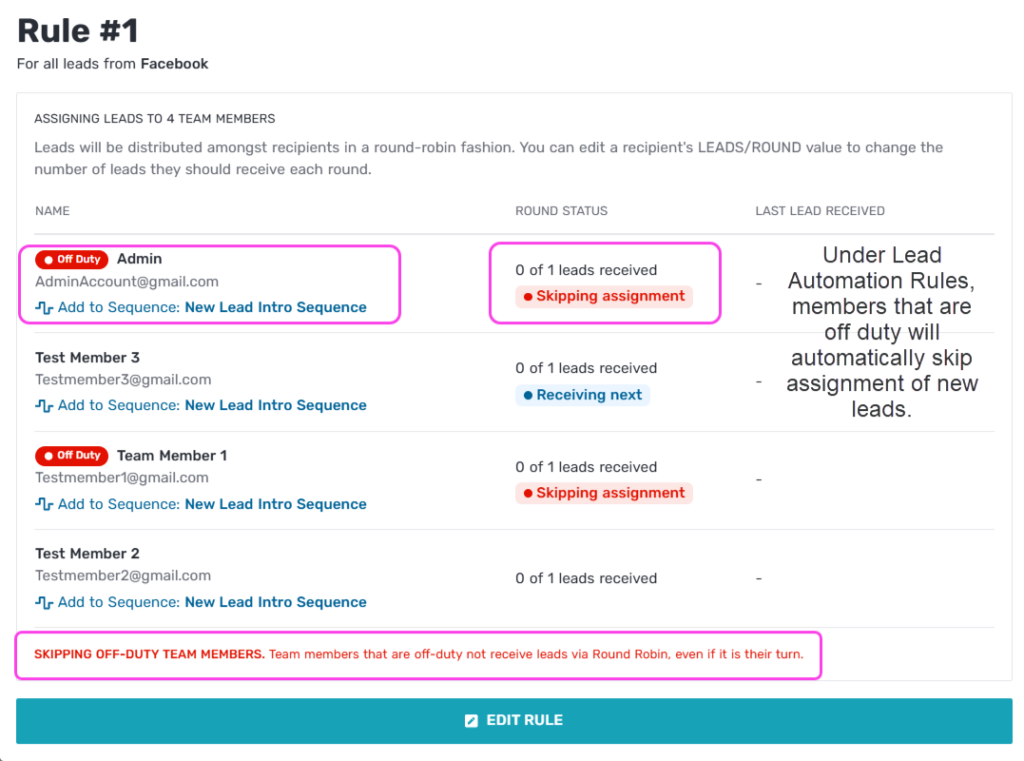
The automation rule indicates which team members are currently unavailable and excluded from assignment.