
FAQ and Common Issues
Here are some of the most common questions users ask when using WhatsApp Automations in Privyr:
Can’t Connect WhatsApp Business Account to Privyr:
- Error: ‘Your WhatsApp account is currently disabled.’
- Error: ‘This feature isn’t available in your current location.’
- Error: ‘Missing Two-Factor Authentication.’
- Error: ‘WABA connection mode must be set to Coexistence for this operation.’
- Error: ‘Your phone number isn’t eligible to connect to the WhatsApp Business platform. More activity on the WhatsApp Business app is needed to help determine eligibility.’
- Error: ‘The phone number you have entered is not associated with the business that you selected. To continue, you need to unlink this phone number.’
- Error: ‘The business is already sharing this WhatsApp Business Account with a Partner.’
- Error: ‘This business does not comply with WhatsApp’s Commerce Policy.’
- Error: ‘Error while parsing cloud API’
- Error: ‘Can’t scan QR code’
- Error: ‘Your advertising access is restricted.’
- Error: ‘The business you selected has one or more ad account in an invalid state.’
- Error: ‘You cannot proceed with this operation as your WhatsApp Business account is currently restricted.’
- Error: ‘This phone number is already linked to a Facebook page. To continue, you need to unlink your account.’
- Error: “Your phone number is already linked to Automatic Events”
- Error: “This phone number is already registered under the INBOX product”
Limitations After Enabling Automations For WhatsApp Business:
- Why can’t I delete or edit a message on WhatsApp Business after connecting my WhatsApp account to Privyr?
- Why did my WhatsApp Business account get disconnected on my other devices after setting up WhatsApp Auto-Responder or WhatsApp Campaigns?
WhatsApp Message Delivery Error Messages
Can’t Connect WhatsApp Business Account to Privyr
ERROR: ‘YOUR WHATSAPP ACCOUNT IS CURRENTLY DISABLED’
If you see the error message “Your WhatsApp account is currently disabled.” when trying to connect your WhatsApp Business account to Privyr, this usually means that your WhatsApp number is not currently logged in to the WhatsApp Business mobile app on your phone.
Meta requires your WhatsApp Business number to be logged in and active on the WhatsApp Business app before it can be connected to Privyr.
To fix this:
- Open the WhatsApp Business mobile app on your phone and ensure your number is logged in.
- Once logged in, return to Privyr and try connecting your WhatsApp Business account again.
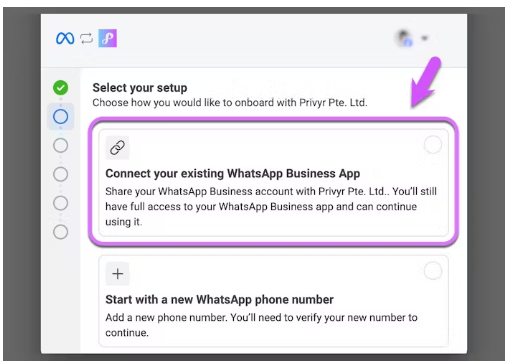
- During setup, make sure to select “Connect your existing WhatsApp Business App” and enter your WhatsApp Business phone number when prompted by Facebook.
ERROR: ‘THIS FEATURE ISN’T AVAILABLE IN YOUR CURRENT LOCATION.’
Meta currently supports automations for WhatsApp Business numbers in most countries. However, some countries and regions are not supported yet. You can view Meta’s latest list of unsupported countries here.
WhatsApp Business account numbers with country codes from the following countries are not supported as of 23 October 2025:
- Nigeria
- South Africa
If your country is not supported yet, you can try connecting a different WhatsApp Business number from a supported country.
ERROR: ‘MISSING TWO-FACTOR AUTHENTICATION.’
Meta may require you to enable two-factor authentication (2FA) in your Facebook Business Manager settings to connect your WhatsApp Business account to Privyr (and any other platforms that supports Coexistence).
ERROR: ‘WABA CONNECTION MODE MUST BE SET TO COEXISTENCE FOR THIS OPERATION.’
If you see this error message, it’s likely that your WhatsApp number is not currently logged in on the WhatsApp Business mobile app yet.
Make sure your number is active and logged in on the WhatsApp Business app (not the personal WhatsApp app or WhatsApp Business API), as this is required by Meta.
Here’s the list of requirements to ensure that you can successfully connect your WhatsApp Business number to Privyr:
- You are connecting a phone number that is logged in on the WhatsApp Business mobile app, and NOT the regular personal WhatsApp app or WhatsApp Business API
- You are using WhatsApp Business app version 2.24.17 or higher
- Your WhatsApp phone number’s country code is supported. View the list of unsupported countries here.
- Your phone number is not banned on WhatsApp
ERROR: ‘YOUR PHONE NUMBER ISN’T ELIGIBLE TO CONNECT TO THE WHATSAPP BUSINESS PLATFORM. MORE ACTIVITY ON THE WHATSAPP BUSINESS APP IS NEEDED TO HELP DETERMINE ELIGIBILITY.’
If you recently switched your number to WhatsApp Business, you may encounter issues connecting it to Privyr for Coexistence. This happens because Meta requires WhatsApp Business numbers to have sufficient activity and usage before they become eligible for automations.
Newly created or inactive WhatsApp Business numbers may not be available for connection until Meta detects enough usage on the account.
To fix this:
- Add a Business Name to your WhatsApp Business profile.
- Upload a Profile Photo.
- Actively use your WhatsApp Business number to send and receive messages with real contacts through the mobile app.
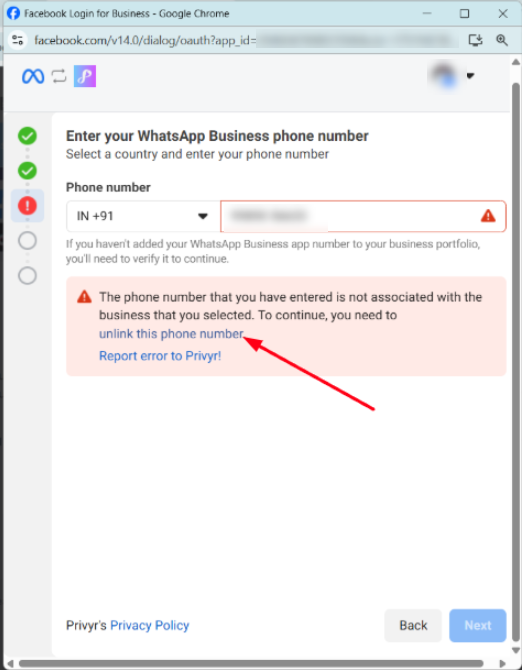
ERROR: ‘THE PHONE NUMBER YOU HAVE ENTERED IS NOT ASSOCIATED WITH THE BUSINESS THAT YOU SELECTED. TO CONTINUE, YOU NEED TO UNLINK THIS PHONE NUMBER.’
It’s likely that the WhatsApp Business number is already connected to a different Business Portfolio, which isn’t the one that you selected when connecting your WhatsApp Business account.
To fix this:
- Ensure that you’re selecting the correct Business Portfolio when connecting your WhatsApp Business account to Privyr
- Select Connect your existing WhatsApp Business app
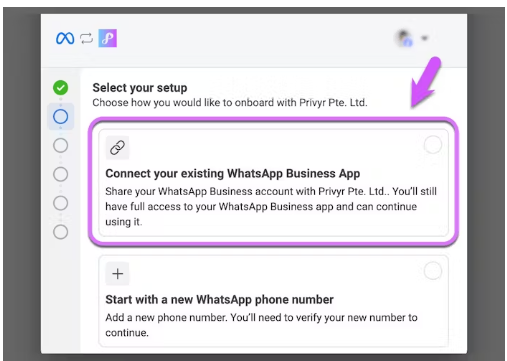
- Retry connecting your WhatsApp Business number to Privyr
If the issue persists, you may need to unlink or remove your WhatsApp Business number from the other Business Portfolio by clicking on this link on the error message shown on Meta:
ERROR: ‘THE BUSINESS IS ALREADY SHARING THIS WHATSAPP BUSINESS ACCOUNT WITH A PARTNER.’
This issue happens when your WhatsApp Business number is already connected to another partner in your Business Portfolio. Meta only allows each WhatsApp Business number to be connected to one Meta Business Partner at a time.
To fix this, you need to disconnect your WhatsApp Business from the current Partner. Open your WhatsApp Business app on your phone and follow these steps:
- Tap ‘…‘ options
- Go to Settings
- Select Account
- Select Business Platform
- Find and tap on the current partner
- Tap Next to disconnect
Once disconnected (which could take up to 5 minutes), return to the Privyr web and try connecting your WhatsApp Business account to Privyr again.
If the issue persists, you can also follow these steps:
- Go to Meta Business Suite’s WhatsApp accounts
- Select your WhatsApp account
- Click the (…) options
- Click on Remove from business portfolio.
Once disconnected, you should be able to connect your WhatsApp Business number to Privyr without issues.
ERROR: ‘THIS BUSINESS DOES NOT COMPLY WITH WHATSAPP’S COMMERCE POLICY.’
It’s likely that your WhatsApp Business account has been restricted by Meta or WhatsApp.
To keep the WhatsApp Business Platform safe, Meta may restrict WhatsApp Business accounts that repeatedly violate its policies.
You will receive a notification if your WhatsApp Business account has violated a policy. You can view the details of the policy violation directly in your account and file an appeal.
Visit this Meta article to learn how to file an appeal on Meta.
ERROR: ‘ERROR WHILE PARSING CLOUD API’ / ‘CAN’T SCAN QR CODE’
This error may occur when connecting your WhatsApp Business account to Privyr, likely caused by an intermittent issue on Meta’s side, which usually gets resolved simply by retrying later.
If the issue persists, check if you fulfil the following requirements:
- You are connecting a phone number that is logged in to the WhatsApp Business mobile app, and NOT the regular personal WhatsApp app or WhatsApp Business API
- You are using WhatsApp Business app version 2.24.17 or higher
- Your phone number is not banned or restricted on WhatsApp
It may also be a browser-specific issue, and here are the steps to fix it:
- Clear your browser’s cache
- Open your browser in Incognito or Private mode
- Try using a different browser
ERROR: ‘YOUR ADVERTISING IS CURRENTLY RESTRICTED.’
It looks like there are some advertising restrictions on your Meta Account, which is preventing you from using the account and/or Business Portfolio to connect your WhatsApp Business number to Privyr (for WhatsApp CoExistence).
To resolve this, you would need to sort out the advertising restriction placed by Meta by going to your Meta Business Support Home via this link and resolving any issues listed on the page related to advertising restrictions.
Once the restrictions are lifted, you should then be able to connect your WhatsApp Business number to Privyr using your Meta Account and Business Portfolio.
ERROR: ‘THE BUSINESS YOU SELECTED HAS ONE OR MORE AD ACCOUNT IN AN INVALID STATE.’
It looks like an Ad Account under your Business Portfolio is in an invalid state, and you’d need to have it sorted out first before you’re able to connect your WhatsApp Business number to Privyr and select the said Business Portfolio during the process.
Here are the steps to sort this out:
- First, go to Meta Business Support Home via this link: https://www.facebook.com/business-support-home
- From Account Overview, click the restricted account that you want to troubleshoot.
- Look for the What you can do section and take the recommended steps detailed below. Meta may ask you to do one or more of the following:
- Confirm your identity
- Complete verification
- Secure your account
- Request a review
Once the restrictions are lifted, you should then be able to connect your WhatsApp Business number to Privyr.
If you’re facing issues with requesting a review to resolve the restriction, kindly reach out to Meta Support so they can help lift the restriction applied in your Ad Account(s).
ERROR: ‘YOU CANNOT PROCEED WITH THIS OPERATION, AS YOUR WHATSAPP BUSINESS ACCOUNT IS CURRENTLY RESTRICTED.’
It looks like your WhatsApp Business number is currently restricted, hence, you’re unable to complete the process of connecting your WhatsApp Business number to Privyr.
As per Meta’s advice, you can use a different WhatsApp Business number (if you have one available) or click on the ‘Business Support Home‘ link to check if there are any recommendations shared by Meta to help resolve the issues on your account:
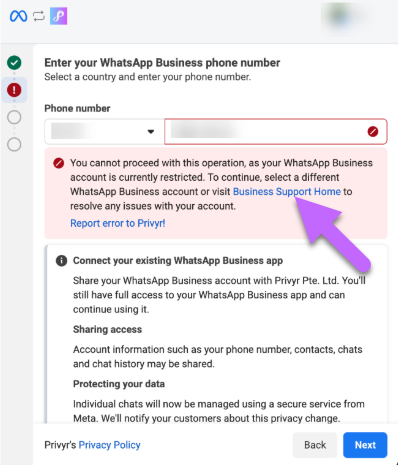
Once the restrictions are lifted for your WhatsApp Business account, you can then try connecting your WhatsApp Business number to Privyr once again, as it should already work.
ERROR: ‘THIS PHONE NUMBER IS ALREADY LINKED TO A FACEBOOK PAGE. TO CONTINUE, YOU NEED TO UNLINK YOUR ACCOUNT.’
It looks like your WhatsApp Business number has been linked to a Facebook Page in the past (perhaps added to a quick contact button or something similar), hence, it’s preventing you from connecting it to Privyr.
That said, kindly check if you’ve previously added your WhatsApp Business number as a quick contact button to a Facebook or Instagram page.
Here are the articles from Meta on how to check this:
Once you identify that there’s a WhatsApp number added to any of your Facebook or Instagram page’s contact button, there should be an option for you to log in to your Business Manager and remove or unlink it.
After unlinking the WhatsApp number from the Facebook or Instagram page’s quick contact button, you can then try connecting it to Privyr to see if it works.
ERROR: “YOUR PHONE NUMBER IS ALREADY LINKED TO AUTOMATIC EVENTS.”
It looks like your phone number is currently linked to an Automatic Events in WhatsApp.
This error occurs because the phone number you are trying to register is still connected to another Meta business tool (like Meta Business Suite, a previous API setup, or an old “Auto Labels” or “Automatic Event Identification” feature).
To disable auto-created lists or labels in the WhatsApp Business app, navigate to Tools > Lists (or Auto-create lists in the “For you” section) and tap the toggle to turn it off
Here is the help guide from WhatsApp on how to do this:
ERROR: “ THIS PHONE NUMBER IS ALREADY REGISTERED UNDER THE INBOX PRODUCT.”
This issue happens when your WhatsApp Business number is already connected to another partner in your Business Portfolio. Meta only allows each WhatsApp Business number to be connected to one Meta Business Partner at a time.
To fix this, you need to disconnect your WhatsApp Business from the current Partner. Open your WhatsApp Business app on your phone and follow these steps:
- Tap ‘…‘ options
- Go to Settings
- Select Account
- Select Business Platform
- Find and tap on the current partner
- Tap Next to disconnect
Once disconnected (which could take up to 5 minutes), return to the Privyr web and try connecting your WhatsApp Business account to Privyr again.
If the issue persists, you can also follow these steps:
- Go to Meta Business Suite’s WhatsApp accounts
- Select your WhatsApp account
- Click the (…) options
- Click on Remove from business portfolio.
Once disconnected, you should be able to connect your WhatsApp Business number to Privyr without issues.
Limitations After Enabling Automations For WhatsApp Business
Once your account is connected for automations through WhatsApp Coexistence, certain features in your WhatsApp Business app will be disabled. These changes are part of WhatsApp’s built-in safeguards to protect your account, while ensuring automated sending works reliably.
You will gain access to WhatsApp-approved automated sending tools, such as WhatsApp Campaigns. However, some features will no longer be available, including (but not limited to):
- Sending WhatsApp Broadcast Lists
- Deleting or editing previously sent messages
- WhatsApp Business number is getting unlinked or disconnected from other devices
- You can always relink any supported devices to your WhatsApp Business account
- View once messages is disabled for all individual (1:1) chats
- Disappearing messages turned off for all individual (1:1) chats
- Live location messages is disabled for all individual (1:1) chats
These limitations are imposed by WhatsApp and are expected when an account enables automations.
If you disconnect your number from WhatsApp Automations, these functionalities will be re-enabled.
You can find the limitations or changes to the WhatsApp Business app after enabling automations here.
WhatsApp Message Delivery Error Messages
If a WhatsApp message fails to deliver, you’ll see a list error message explaining why when viewing the Failed section upon monitoring your WhatsApp Campaign performance or when viewing your Automated WhatsApp Sequence history. Below are the most common error messages you may encounter, along with what they mean. See Meta’s full error code documentation here.
| Error Message | Possible reasons and solutions |
| Message Undeliverable | Unable to deliver the message. As per Meta, reasons can include: – The recipient phone number is not a WhatsApp phone number – The recipient has blocked your WhatsApp number – The recipient’s phone number is blocked or restricted on WhatsApp – The recipient has not accepted Meta’s new Terms of Service and Privacy Policy Recipient using an old WhatsApp version; must use the following WhatsApp version or greater: Android: 2.21.15.15 – SMBA: 2.21.15.15 – iOS: 2.21.170.4 – SMBI: 2.21.170.4 – KaiOS: 2.2130.10 – Web: 2.2132.6 |
| This message was not delivered to maintain healthy ecosystem engagement | This is due to the per-user marketing limits on WhatsApp Cloud API: https://developers.facebook.com/docs/whatsapp/business-management-api/message-templates/template-messaging-limits As per Meta, WhatsApp Cloud API may choose not to deliver a WhatsApp Message purely because of factors or reasons on the recipient’s end (you would also notice that the automated WhatsApp messages were sent accordingly to your other clients or recipients). Lastly, if you do receive this error code, Meta suggests waiting at least 24 hours before resending the template message to the recipients. Doing so will only result in another error response since the limit may be in effect for differing periods of time: https://developers.facebook.com/documentation/business-messaging/whatsapp/support/error-codes |
| Business Account Locked | The WhatsApp Business Account connected to Privyr may currently be restricted for violating a platform policy on Meta or WhatsApp. As per Meta, WhatsApp is detecting behaviour that signals spam/automated/bulk messaging and restricting it as a result. You can find more details here:https://faq.whatsapp.com/717472490411581/?cms_platform=web The restriction automatically ends once the allocated time passes and you’ll receive a notification in WhatsApp when it ends. To check the time remaining in your restriction, tap New Chat, then select a contact that you’ve never chatted with before. The pop-up shows the time remaining if your account is still restricted. If you’re able to send or receive messages via your WhatsApp Business number, here are the additional steps: 1. First, go to Meta Business Support Home via this link: https://www.facebook.com/business-support-home 2. From Account Overview, click the restricted account that you want to troubleshoot. 3. Look for the What you can do section and take the recommended steps detailed below. Meta may ask you to do one or more of the following: – Confirm your identity – Complete verificationSecure your account – Request a review Once the restrictions are lifted for your WhatsApp Business account, the WhatsApp messages should be delivered to your recipients successfully. |
| Business Eligibility Payment Issues | This error typically arises due to problems with your WhatsApp Business account’s payment method or billing setup. That said, here are the steps that you can follow: 1. Go to the Billing section on Meta Business: https://business.facebook.com/billing_hub/ 2. Check if there are any payment issues that you need to settle on Meta’s end 3. Once the payment issues on Meta are sorted out, the WhatsApp messages should be sent to your recipients See About Billing For Your WhatsApp Business account and verify that you have set up billing correctly. As per Meta, common problems are: – Payment account is not attached to a WhatsApp Business account – Credit line is over the limitCredit line (Payment Account) not set or active – WhatsApp Business account is deleted – WhatsApp Business account is suspended – Timezone not setCurrency not set – Messaging For request (On Behalf Of) is pending or declined |
| Rate Limit Hit | Meta enforces messaging limits on the WhatsApp Business Platform Messaging limits are the maximum number of unique WhatsApp user phone numbers your business can deliver messages to, outside of a customer service window, within a moving 24-hour period. Newly created business portfolios have a messaging limit of 250, but this limit can be increased to: 1. 2,000 (by completing a scaling path) 2. 10,000 (via automatic scaling) 3. 100,000 (via automatic scaling)Unlimited (via automatic scaling) If the WhatsApp Business number connected to Privyr has reached this messaging limit within a 24-hour period, the messages will fail and you will receive this error ‘Rate Limit Hit’. You can identify the messaging limits applied to your WhatsApp Business account via this link. If you’re running WhatsApp Campaigns and you’re receiving this error message for your failed WhatsApp messages, please wait for 24 hours and retry sending the campaign to failed recipients. You’ll also have the option to enable the ‘Automatically Retry Sending to Failed Recipients’ within 1 to 7 days if your campaign’s number of recipients exceeds the messaging limit applied to your WhatsApp Business number. |
| User’s number is part of an experiment | This means that Meta is testing message engagement by restricting marketing messages to roughly 1% of users who have not initiated recent contact with a business. Marketing templates will fail to deliver to these users unless a 24-hour chat window exists or they engage through a Click-to-WhatsApp ad. Affected messages will not be delivered, but you are not billed for them, and no opt-out exists. This means that the recipient is part of a randomized 1% subset in their region selected for a Meta experiment. Meta runs these tests to improve user engagement and control the volume of marketing messages, often affecting about 1% of users. Marketing templates fail when no active service window, free-entry point (e.g., Click-to-WhatsApp ad), or existing chat exists with the user. Unfortunately, you cannot bypass this restriction. The best action is to reach the customer through WhatsApp manually or through a different channel (SMS, email). |
If you continue to encounter issues with connecting your WhatsApp Business number or any WhatsApp Message delivery concerns, please contact our support team here.